Overview
In WPF’s ComboBox, the configuration of DisplayMemberPath, ItemTemplate, SelectedItem, SelectedValue, and SelectedValuePath varies depending on the element type of the collection bound to ItemsSource.
This article organizes the representative binding patterns and explains how to select the appropriate properties for each case.
Prerequisites / Environment
- Framework / Language: .NET 8 / C# 12
- Target control: WPF ComboBox
- Architecture: MVVM (binding through DataContext)
- Prior knowledge: WPF binding basics,
INotifyPropertyChanged - Verification environment: .NET 10 / Windows 11
The figures in this article come from reading SelectedItem, SelectedValue, and SelectedIndex for the same selection in the environment above.
The following points were confirmed in that environment:
- Whether
SelectedValuePathis set changes whatSelectedValueholds. - Whether
DisplayMemberPathis set changes the string that is displayed.
Problem
When the element type of the collection bound to ItemsSource changes, the method for retrieving the selected value also changes.
For example, binding a list of strings differs from binding a list of objects that each have an ID and a display name: the ViewModel property type and the required XAML properties are different in each case.
Without understanding this distinction, the selected value may not be reflected, or the initial selection may fail to appear.
Cause / Background
The ComboBox exposes three selection-related properties:
| Property | Returns | Primary use |
|---|---|---|
SelectedItem |
The element itself from ItemsSource |
Pass the whole object to the ViewModel |
SelectedValue |
The value of the property named by SelectedValuePath |
Retrieve only a specific field such as an ID |
SelectedIndex |
The zero-based index of the selected row | Manage position only |
When ItemsSource holds strings, SelectedItem returns a string.
When ItemsSource holds objects and SelectedValuePath is set, SelectedValue returns the value of the specified property.
The appropriate binding target depends on the data structure, so the configuration must be aligned accordingly.
What the three properties return for the same selection can be confirmed by selecting an item and reading them back.
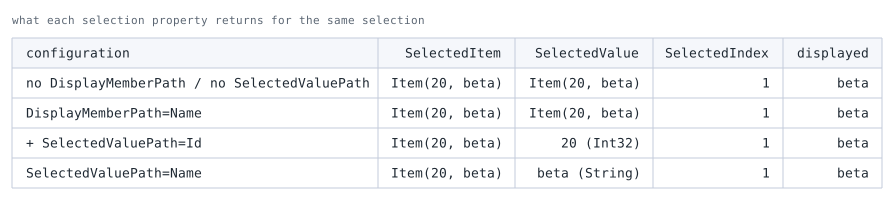
Id and a Name. displayed is the string shown on the closed ComboBox.Without SelectedValuePath, SelectedValue returns the item itself. The table above describes it as the value at SelectedValuePath; when that path is unset, what comes back is the same object as SelectedItem.
Setting SelectedValuePath=Id produces the Int32 20, changing the type as well. Passing only an ID to the view model requires that setting.
DisplayMemberPath affects only what is displayed and leaves SelectedValue untouched. The two are independent.
Five Implementation Patterns
Five representative patterns, formed by the element type in ItemsSource combined with what the ViewModel needs to hold.
Even with the same element type, the configuration changes with how the selection is received and how the display is built.
Some change what is rendered; others render the same and differ only in what lands in SelectedValue (Patterns B and C).
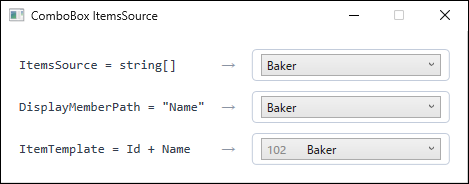
DisplayMemberPath render a single string, whereas ItemTemplate is applied to the selected item as well, allowing several fields to be shown side by side.Pattern A: String List
When ItemsSource is ObservableCollection<string>, DisplayMemberPath is unnecessary.
Binding SelectedItem to a string property in the ViewModel is sufficient.
<ComboBox ItemsSource="{Binding Regions}"
          SelectedItem="{Binding SelectedRegion}" />
The corresponding ViewModel implementation is as follows.
public ObservableCollection<string> Regions { get; } = new()
{
    "Northeast", "Midwest", "South", "West"
};

private string? _selectedRegion;
public string? SelectedRegion
{
    get => _selectedRegion;
    set { _selectedRegion = value; OnPropertyChanged(); }
}
Binding SelectedItem to a type other than string (for example, int) results in a type mismatch and the binding will not reflect the selection.
Pattern B: Object List + DisplayMemberPath + SelectedItem
When ItemsSource is ObservableCollection<T> and the entire selected object is needed in the ViewModel, specify the display property with DisplayMemberPath and bind SelectedItem to a property of type T.
<ComboBox ItemsSource="{Binding Departments}"
          DisplayMemberPath="Name"
          SelectedItem="{Binding SelectedDepartment}" />
The above XAML displays the Name property of each Department object while binding the entire selected Department to SelectedDepartment.
The model and ViewModel definitions are as follows.
public class Department
{
    public int Id { get; set; }
    public string Name { get; set; } = string.Empty;
}

public ObservableCollection<Department> Departments { get; } = new()
{
    new Department { Id = 1, Name = "Sales" },
    new Department { Id = 2, Name = "Engineering" },
    new Department { Id = 3, Name = "Administration" },
};

private Department? _selectedDepartment;
public Department? SelectedDepartment
{
    get => _selectedDepartment;
    set { _selectedDepartment = value; OnPropertyChanged(); }
}
After selection, any field such as SelectedDepartment.Id or SelectedDepartment.Name is accessible.
Holding the whole object in the ViewModel makes it straightforward to reference multiple fields later.
Pattern C: Object List + DisplayMemberPath + SelectedValuePath
This pattern applies when only a specific field — such as an ID — needs to be stored in the ViewModel.
Specify the desired property name in SelectedValuePath and bind SelectedValue to a property of the matching type.
<ComboBox ItemsSource="{Binding Departments}"
          DisplayMemberPath="Name"
          SelectedValuePath="Id"
          SelectedValue="{Binding SelectedDepartmentId}" />
The corresponding ViewModel property that holds the selected Id is defined as follows.
private int _selectedDepartmentId;
public int SelectedDepartmentId
{
    get => _selectedDepartmentId;
    set { _selectedDepartmentId = value; OnPropertyChanged(); }
}
If the type of SelectedValue does not match the type of the property named by SelectedValuePath, the selection will not be reflected.
SelectedItem and SelectedValue can coexist; updating one automatically updates the other.
Pattern D: Custom Display with ItemTemplate
When multiple fields need to appear in a single row, or when an icon is included alongside text, use ItemTemplate.
Both DisplayMemberPath and ItemTemplate can be set at the same time, but ItemTemplate takes precedence and DisplayMemberPath is ignored.
For custom display, use ItemTemplate only and avoid combining it with DisplayMemberPath.
<ComboBox ItemsSource="{Binding Employees}"
          SelectedItem="{Binding SelectedEmployee}">
    <ComboBox.ItemTemplate>
        <DataTemplate>
            <StackPanel Orientation="Horizontal">
                <TextBlock Text="{Binding Id}" Width="40" Foreground="Gray"/>
                <TextBlock Text="{Binding Name}" />
            </StackPanel>
        </DataTemplate>
    </ComboBox.ItemTemplate>
</ComboBox>
The Employee model referenced by this XAML is defined as follows.
public class Employee
{
    public int Id { get; set; }
    public string Name { get; set; } = string.Empty;
}
When different layouts are needed for the collapsed selection display versus the expanded dropdown list, use ContentTemplate alongside ItemContainerStyle instead of relying on ItemTemplate alone.
Pattern E: Enum List
For a fixed set of choices defined by an enumeration, generating the collection in the ViewModel with Enum.GetValues is more maintainable than using ObjectDataProvider in XAML.
The ViewModel generates the enum values as follows.
public enum Priority { Low, Medium, High }

public IEnumerable<Priority> Priorities { get; }
    = (Priority[])Enum.GetValues(typeof(Priority));

private Priority _selectedPriority = Priority.Medium;
public Priority SelectedPriority
{
    get => _selectedPriority;
    set { _selectedPriority = value; OnPropertyChanged(); }
}
The XAML binds ItemsSource and SelectedItem to these ViewModel properties as follows.
<ComboBox ItemsSource="{Binding Priorities}"
          SelectedItem="{Binding SelectedPriority}" />
SelectedItem is of type Priority.
Retrieving the underlying integer value via SelectedValue and SelectedValuePath is possible, but an explicit cast such as (int)SelectedPriority expresses the intent more clearly.
How to Choose
Which pattern applies is settled by the element type in ItemsSource and by what the ViewModel needs to hold.
- For simple values such as
stringor anenum, useSelectedItem, which hands back the element itself (Patterns A and E). - For objects where the whole selected object is needed, use
SelectedItem(Pattern B). - For objects where the ViewModel should hold only one value such as an ID, use
SelectedValuewithSelectedValuePath(Pattern C). - To separate the display name from the value stored in the ViewModel, combine
DisplayMemberPathwithSelectedValuePath. - To show several fields on one line, use
ItemTemplate(Pattern D). - Reserve
SelectedIndexfor cases where the position in the list itself carries meaning; otherwise prefer working with values or objects directly.
Keeping the ViewModel property type aligned with the ComboBox configuration is what prevents missed initial selections and update failures.
Comparing the Patterns
| Pattern | ItemsSource type |
Retrieving the selection | Best suited for |
|---|---|---|---|
| A: string list | ObservableCollection<string> |
SelectedItem (string) |
Options that are plain labels |
| B: objects + SelectedItem | ObservableCollection<T> |
SelectedItem (T) |
Referencing several fields after selection |
| C: objects + SelectedValuePath | ObservableCollection<T> |
SelectedValue (the property’s type) |
Only one field, such as an ID, is needed |
| D: ItemTemplate | ObservableCollection<T> |
SelectedItem (T) |
Showing several fields on one line |
| E: enum | IEnumerable<TEnum> |
SelectedItem (TEnum) |
Choosing from a fixed set of enum values |
Notes
-
Behavior when both
DisplayMemberPathandItemTemplateare set
When both are set,ItemTemplatetakes precedence andDisplayMemberPathis ignored.
To prevent unintended behavior, useItemTemplatewhen custom display is needed and do not combine it withDisplayMemberPath. -
Setting the initial value for
SelectedValuecorrectly
When usingSelectedValuePath, if the ViewModel’s initial value does not exist inItemsSource, the selection state will be empty.
SettingSelectedValuebeforeItemsSourceis assigned can also cause the binding to have no effect.
Always assignItemsSourcebefore setting the selected value. -
SelectedItemmatching considersEquals
SelectedItemdoes not strictly perform reference comparison; it involvesEquals-based matching.
With the default implementation, two separate instances with identical contents will not be considered equal, so setting a different instance as an initial value will not result in a visible selection.
To achieve value-based equality, overrideEqualsandGetHashCodeon the target type and implementIEquatable<T>if necessary.
When selection should be managed by an identifier or code value, useSelectedValuePathwithSelectedValue. -
Handling
null
To include a “no selection” option in the list, bind anullentry inItemsSource; theComboBoxdisplays it as a blank entry.
Use a nullable type (for example,string?orint?) for the ViewModel property.
Summary
The implementation pattern for a ComboBox follows from the type passed to ItemsSource.
Simple values call for SelectedItem; for objects, choose between SelectedItem and SelectedValue by whether the whole object is needed or one field suffices.
Most cases where an initial value fails to appear come down to a reference-comparison mismatch or the order in which ItemsSource is assigned.
Using SelectedValuePath, or designing so that the same instance is referenced, avoids both.