Overview
This article explains how to display text such as error messages or logs in WPF so that it remains non-editable while still allowing selection and copying.
Although TextBlock is suitable for display scenarios, it is not designed for partial text selection and copy operations in the same way as TextBox.
For this requirement, a practical approach is to use a read-only TextBox and adjust its appearance so it behaves like a display control.
Prerequisites / Environment
- Framework / Language: WPF / C# / XAML
- Target controls / features:
TextBlock,TextBox - Architecture: Applicable to both MVVM and code-behind implementations
- Intended use cases: Error messages, logs, and detail text display
- Verification environment: .NET 10 / Windows 11
The figures in this article come from displaying a TextBlock and a TextBox in the environment above and reading whether text can be selected and how focus behaves.
The following points were confirmed in that environment:
TextBlockexposes no API for selecting text.- A
TextBoxwithIsReadOnlyset still allows text selection. - Selection still works after applying the settings that make it look like a
TextBlock. - Clearing
IsTabStopleaves the control focusable.
Problem
In screens that display error messages or detailed information, the content often needs to remain non-editable while still being easy to copy.
A dedicated copy button is one possible solution, but many real-world cases require copying only a part of the displayed text.
This creates a need for a UI element that behaves as read-only display text while still supporting text selection and copy operations.
Cause / Background
TextBlock is a lightweight control intended for display-only text rendering and works well for static labels or descriptive text.
However, standard TextBlock usage is not well suited to workflows where users need to select and copy part of the rendered text.
TextBox, by contrast, is designed as an input control, but setting IsReadOnly="True" disables editing while preserving built-in text selection and copy behavior.
In addition, the background, border, and caret display can be adjusted so the control visually resembles a TextBlock.
For display scenarios, this makes it possible to treat a TextBox as a practical replacement for TextBlock.
The figure below records, for each display-only candidate, whether the text can be selected and how it takes focus.
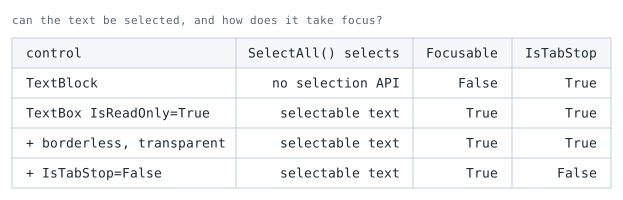
SelectAll() selects is the content read back from SelectedText after calling SelectAll().TextBlock reports Focusable as False. Beyond lacking a selection API, it does not take focus at all.
Switching to a TextBox makes the text selectable, and removing the border and background does not change that. Appearance and behavior are independent here.
As the last row shows, setting IsTabStop to False leaves Focusable at True.
The control drops out of the Tab cycle while click-to-focus and selection remain — which is the combination to use for a display-only look that still allows selection.
Solution
When display-only text also needs to be selectable, replace TextBlock with TextBox and apply a small set of visual and behavioral settings.
The key settings are as follows.
IsReadOnly="True"
Prevents editing while allowing selection and copyingIsReadOnlyCaretVisible="False"
Hides the caret when the control is read-onlyBackground="Transparent"
Makes the background transparentBorderThickness="0"
Removes the borderTextWrapping="Wrap"
Wraps long text across multiple lines
With this configuration, the control keeps the selection and copy behavior of TextBox while appearing close to TextBlock in common display layouts.
Implementation
The following XAML shows the minimal setup for displaying an error message as non-editable but still selectable text.
The control is styled so it can be used as a replacement for TextBlock in situations where copy support is required.
<TextBox
    Text="{Binding ErrorMessage}"
    IsReadOnly="True"
    IsReadOnlyCaretVisible="False"
    Background="Transparent"
    BorderThickness="0"
    TextWrapping="Wrap" />
With this configuration, the displayed text cannot be modified, but users can still select any required part and copy it.
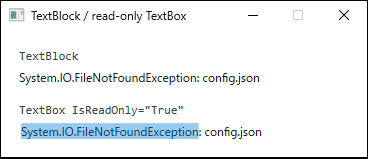
TextBlock (top) and by a read-only TextBox configured as described above (bottom). In the lower one, only the exception type name is selected. Because the background and border are removed, the unselected appearance is nearly identical to TextBlock.Because the appearance is also close to TextBlock, existing display-only text can often be replaced with TextBox without changing the surrounding layout significantly.
For long or multi-line content, return handling and scrolling can be added to improve usability.
The following example shows that extended configuration.
<TextBox
    Text="{Binding ErrorMessage}"
    IsReadOnly="True"
    IsReadOnlyCaretVisible="False"
    Background="Transparent"
    BorderThickness="0"
    TextWrapping="Wrap"
    AcceptsReturn="True"
    VerticalScrollBarVisibility="Auto" />
Setting AcceptsReturn="True" makes multi-line content behave more naturally, and VerticalScrollBarVisibility="Auto" improves usability when the text exceeds the available display area.
Notes
TextBoxretains input-control characteristics, so default styling may introduce padding or focus visuals that differ fromTextBlock- Using only
IsReadOnly="True"may still display a caret when the control receives focus, which can make the control appear editable - Setting
IsReadOnlyCaretVisible="False"suppresses the read-only caret and gives the control a more display-oriented appearance - If strict visual consistency is required, additional properties such as
Padding,Focusable, or a shared style definition may also need adjustment
Alternatives / Comparison
| Method | Advantages | Disadvantages | Suitable cases |
|---|---|---|---|
Use TextBlock as-is |
Lightweight and appropriate for display-only text | Not well suited to partial selection and copying in standard use | Simple labels or static text |
Use a read-only TextBox |
Supports selection and copying and can be treated as a TextBlock replacement |
Requires appearance adjustments | Error messages, logs, and shareable detail text |
| Add a dedicated copy button | Enables one-click full-text copy | Not suitable when only part of the text needs to be copied | Full-copy scenarios such as IDs or predefined messages |
Summary
When WPF text must remain non-editable while still supporting selection and copying, using a read-only TextBox in place of TextBlock is an effective solution.
IsReadOnly="True" prevents editing, and IsReadOnlyCaretVisible="False" suppresses the caret that would otherwise make the control look editable.
By also removing the border and background, the control can be used in the same kinds of display scenarios as TextBlock while preserving copy functionality.
This configuration is a suitable default pattern for any screen that displays text which users may need to reference and partially copy.