概要
WPF の ComboBox は ItemsSource に渡すデータ構造に応じて、表示内容の制御方法と選択値の取得方法が変わる具体的には DisplayMemberPath、ItemTemplate、SelectedItem、SelectedValue、SelectedValuePath の組み合わせが、バインドするコレクションの型によって異なる。
本記事では代表的な実装パターンを整理し、それぞれの選択に関するプロパティの使い分けを示す。
—
前提・対象環境
- フレームワーク/言語: .NET 8 / C# 12
- 対象コントロール: WPF ComboBox
- アーキテクチャ: MVVM(DataContext 経由のバインド)
- 前提知識: WPF バインド基礎、
INotifyPropertyChanged - 検証環境: .NET 10 / Windows 11
本記事の図は、上記の環境で同じ選択に対する SelectedItem / SelectedValue / SelectedIndex を読み出して得たものである。
この環境で確認しているのは次の点である。
SelectedValuePathの有無で、SelectedValueの中身が変わる。DisplayMemberPathの有無で、表示される文字列が変わる。
問題
ComboBox の ItemsSource に渡すコレクションの要素型が変わると、選択値の取得方法も変わるたとえば文字列リストを渡す場合と、ID と名称を持つオブジェクトのリストを渡す場合では、ViewModel にバインドするプロパティの型と設定が異なる。
この違いを把握していないと、選択しても値が反映されない、または初期値が表示されないといった問題が発生する。
—
原因・背景
ComboBox の選択関連プロパティは以下の 3 種類がある。
| プロパティ | 返す値 | 主な用途 |
|---|---|---|
SelectedItem |
ItemsSource の要素そのもの |
オブジェクト全体を ViewModel に渡す |
SelectedValue |
SelectedValuePath で指定したプロパティ値 |
ID など特定フィールドだけを取得する |
SelectedIndex |
選択行のインデックス(0 始まり) | 位置だけを管理する場合 |
文字列リストの場合、要素そのものが文字列であるため SelectedItem は string を返すオブジェクトのリストを使い SelectedValuePath を指定すると、SelectedValue には指定プロパティの値が返る。
どのプロパティをバインドするかはデータ構造に依存するため、構造ごとに設定を合わせる必要がある。
—
同じ選択に対して 3 つのプロパティが何を返すかは、実際に選択して読み出せば確かめられる。
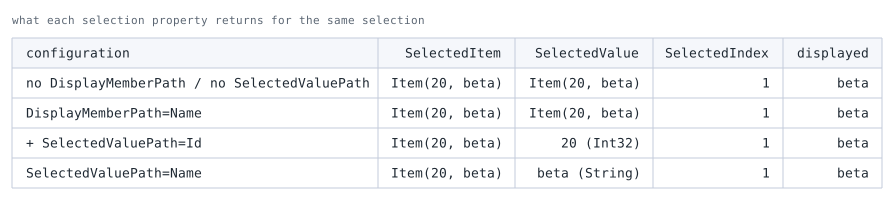
Id と Name を持つ 3 件のうち 2 件目を選択して測った結果。displayed は閉じた状態の ComboBox に表示されている文字列である。SelectedValuePath を設定しないとき、SelectedValue は項目そのものを返す。 上の表では「SelectedValuePath で指定したプロパティ値」と説明したが、未設定時は SelectedItem と同じものが返る点に注意する。
SelectedValuePath=Id にすると Int32 の 20 になり、型まで変わる。ID だけを ViewModel に渡したい場合はこの設定が要る。
DisplayMemberPath は表示だけに効き、SelectedValue の中身には影響しない。この 2 つは独立している。
5 つの実装パターン
ItemsSource の要素型と、ViewModel に何を持たせたいかの組み合わせで、代表的な 5 パターンを順に見る。
要素型が同じでも、選択値の受け取り方や表示の作り方で構成が変わる。
表示が変わるものもあれば、表示は同じで SelectedValue に入る値だけが変わるもの(パターン B と C)もある。
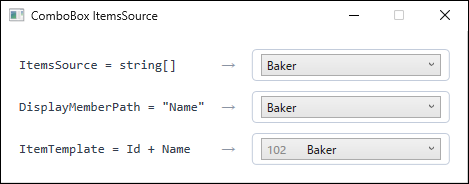
DisplayMemberPath は 1 つの文字列を表示するのに対し、ItemTemplate を使うと選択済みの表示にもテンプレートが適用され、複数フィールドを並べられる。パターン A:文字列リスト
ItemsSource が ObservableCollection<string> のとき、DisplayMemberPath は不要であり、SelectedItem に string 型のプロパティをバインドするだけで機能する。
<ComboBox ItemsSource="{Binding Regions}"
          SelectedItem="{Binding SelectedRegion}" />
対応する ViewModel 側の実装は次のとおりである。
public ObservableCollection<string> Regions { get; } = new()
{
    "東北", "関東", "中部", "近畿", "九州"
};

private string? _selectedRegion;
public string? SelectedRegion
{
    get => _selectedRegion;
    set { _selectedRegion = value; OnPropertyChanged(); }
}
SelectedItem に string 以外の型(例: int)をバインドすると型の不一致でバインドエラーとなる。
パターン B:オブジェクトリスト + DisplayMemberPath + SelectedItem
ItemsSource が ObservableCollection<T> で、表示する文字列と選択して取得するオブジェクトが同じ型の場合、DisplayMemberPath で表示プロパティを指定し、SelectedItem にオブジェクト全体をバインドする。
<ComboBox ItemsSource="{Binding Departments}"
          DisplayMemberPath="Name"
          SelectedItem="{Binding SelectedDepartment}" />
上記の XAML では Department オブジェクトの Name を表示しつつ、選択結果として Department オブジェクト全体を SelectedDepartment にバインドしている。
対応するモデルと ViewModel の定義例は次のとおり。
public class Department
{
    public int Id { get; set; }
    public string Name { get; set; } = string.Empty;
}

public ObservableCollection<Department> Departments { get; } = new()
{
    new Department { Id = 1, Name = "営業部" },
    new Department { Id = 2, Name = "開発部" },
    new Department { Id = 3, Name = "総務部" },
};

private Department? _selectedDepartment;
public Department? SelectedDepartment
{
    get => _selectedDepartment;
    set { _selectedDepartment = value; OnPropertyChanged(); }
}
選択後は SelectedDepartment.Id や SelectedDepartment.Name で任意のフィールドにアクセスできるViewModel にオブジェクト全体を保持するため、後から複数フィールドを参照しやすい。
パターン C:オブジェクトリスト + DisplayMemberPath + SelectedValuePath
表示は Name で行い、選択値として Id(数値や文字列のキー)だけを取得したい場合に使う。
SelectedValuePath に取得したいプロパティ名を指定し、SelectedValue にそのプロパティの型でバインドする。
<ComboBox ItemsSource="{Binding Departments}"
          DisplayMemberPath="Name"
          SelectedValuePath="Id"
          SelectedValue="{Binding SelectedDepartmentId}" />
対応する ViewModel 側では、選択された Id を保持するプロパティを次のように定義する。
private int _selectedDepartmentId;
public int SelectedDepartmentId
{
    get => _selectedDepartmentId;
    set { _selectedDepartmentId = value; OnPropertyChanged(); }
}
SelectedValue の型と SelectedValuePath で指定するプロパティの型が一致していないと、選択値が反映されない。
また SelectedItem と SelectedValue は同時に利用できるが、一方を変更するともう一方も自動で更新される。
—
パターン D:ItemTemplate を使ったカスタム表示
1 行の表示に複数フィールドを含めたい場合や、アイコン付きの選択肢を実装したい場合は ItemTemplate を使う。
DisplayMemberPath と ItemTemplate は両方を設定できるが、表示には ItemTemplate が優先されて DisplayMemberPath は無視される。
そのため、カスタム表示が必要なときは ItemTemplate を使用し、通常は DisplayMemberPath を併用しない。
<ComboBox ItemsSource="{Binding Employees}"
          SelectedItem="{Binding SelectedEmployee}">
    <ComboBox.ItemTemplate>
        <DataTemplate>
            <StackPanel Orientation="Horizontal">
                <TextBlock Text="{Binding Id}" Width="40" Foreground="Gray"/>
                <TextBlock Text="{Binding Name}" />
            </StackPanel>
        </DataTemplate>
    </ComboBox.ItemTemplate>
</ComboBox>
この XAML で参照する Employee モデルの定義例は次のとおりである。
public class Employee
{
    public int Id { get; set; }
    public string Name { get; set; } = string.Empty;
}
ItemTemplate を使う場合、ドロップダウンを閉じた状態(選択済み表示)と展開した一覧で異なるレイアウトを出したいときは、ItemTemplate の代わりに ItemContainerStyle と ContentTemplate を組み合わせる。
パターン E:Enum リスト
選択肢が固定の列挙体の場合、ObjectDataProvider を使って XAML から Enum 値を列挙する方法と、ViewModel でコレクションを用意する方法がある。
保守性を考えると ViewModel でコレクションを生成する方法が安全である。
ViewModel 側で Enum.GetValues を使って選択肢を生成する。
public enum Priority { 低, 中, 高 }

public IEnumerable<Priority> Priorities { get; }
    = (Priority[])Enum.GetValues(typeof(Priority));

private Priority _selectedPriority = Priority.中;
public Priority SelectedPriority
{
    get => _selectedPriority;
    set { _selectedPriority = value; OnPropertyChanged(); }
}
この ViewModel に対して、XAML 側では ItemsSource と SelectedItem を次のようにバインドする。
<ComboBox ItemsSource="{Binding Priorities}"
          SelectedItem="{Binding SelectedPriority}" />
SelectedItem の型は Priority(Enum 型)になるSelectedValue と SelectedValuePath を使って Enum の数値(基底値)だけを取得することも可能だが、明示的に (int)SelectedPriority でキャストした方が意図が明確である。
選択の分岐点
どのパターンを使うかは、ItemsSource の要素型と、ViewModel に何を持たせたいかで決まる。
- 要素が
stringやenumのような単純値なら、要素そのものを受け取るSelectedItemを使う(パターン A・E)。 - 要素がオブジェクトで、選択されたオブジェクト全体を扱いたいなら
SelectedItemを使う(パターン B)。 - 要素がオブジェクトで、ID など特定の値だけを ViewModel に持たせたいなら
SelectedValueとSelectedValuePathを使う(パターン C)。 - 表示用の名称と保持したい値を分けたい場合は、
DisplayMemberPathとSelectedValuePathを組み合わせる。 - 1 行に複数フィールドを並べたい場合は
ItemTemplateを使う(パターン D)。 SelectedIndexは表示順そのものに意味がある場合に限って使い、通常は値やオブジェクトを直接扱う設定を優先する。
ViewModel 側のプロパティ型と ComboBox の設定が対応していれば、初期選択や選択変更の反映漏れは起きにくい。
パターン別の比較
| パターン | ItemsSource の型 | 選択値の取得 | 適するケース |
|---|---|---|---|
| A: 文字列リスト | ObservableCollection<string> |
SelectedItem(string) |
選択肢が単純なラベルのみ |
| B: オブジェクト + SelectedItem | ObservableCollection<T> |
SelectedItem(T) |
選択後に複数フィールドを参照する |
| C: オブジェクト + SelectedValuePath | ObservableCollection<T> |
SelectedValue(指定プロパティ型) |
ID など特定フィールドだけ必要 |
| D: ItemTemplate | ObservableCollection<T> |
SelectedItem(T) |
複数フィールドを 1 行に表示する |
| E: Enum | IEnumerable<TEnum> |
SelectedItem(TEnum) |
固定の列挙値から選択する |
注意点
DisplayMemberPathとItemTemplateを同時に設定した場合の挙動
両方を設定するとItemTemplateが優先されてDisplayMemberPathは無視される。
意図しない挙動を防ぐため、カスタム表示が必要な場合はItemTemplateを使用し、DisplayMemberPathを併用しない。SelectedValueの初期値を正しく設定する
SelectedValuePathを使う場合、ViewModel 側の初期値がItemsSource内に存在しない値だと選択状態が空になる。
ItemsSourceがセットされる前にSelectedValueが設定されるとバインドが空振りすることがある。
ItemsSourceを先に設定してから選択値を設定する順序を守る。SelectedItemの一致判定はEqualsを考慮する
SelectedItemは「常に参照比較」とは限らず、Equalsによる一致判定が関わる。
既定の実装では別インスタンス同士は一致しないことが多いため、同じ内容のオブジェクトを初期値として設定しても選択されない場合がある。
値同値で一致させたい場合は、対象型でEqualsとGetHashCodeをオーバーライドし、必要に応じてIEquatable<T>も実装する。
識別子やコード値のような特定プロパティで選択を管理したい場合は、SelectedValuePathとSelectedValueを使う。nullの扱い
選択肢として「未選択」を表すnullを含める場合、ComboBox は空欄として表示する。
ViewModel 側でnullを許容する型(例:string?,int?)を使う。
まとめ
ComboBox の実装パターンは ItemsSource に渡す型によって決まる。
単純値なら SelectedItem、オブジェクトなら全体が要るか特定フィールドだけで足りるかで SelectedItem と SelectedValue を選び分ける。
初期値が反映されない問題の多くは、参照比較の不一致か ItemsSource のセット順序に起因する。
SelectedValuePath を使うか、同一インスタンスを参照するよう設計することで回避できる。