Overview
In WPF data binding, a double, decimal, or DateTime is displayed using the result of its default ToString().
As a result, a price appears as “1234.5” rather than “$1,235”, and a date appears as “7/17/2026 12:00:00 AM” rather than “July 17, 2026”, so some formatting step is required.
Binding.StringFormat provides a display-only format in a single line of XAML, without implementing an IValueConverter.
This article shows how to format numbers, currency, and dates with implementation examples, and clarifies the pitfalls such as culture dependency and the constraint on ContentControl.
Prerequisites / Environment
- Framework / Language: .NET 8 / C# 12 (
StringFormatis also available from .NET Framework 3.5 SP1) - Target control / feature: bindings on
TextBlock,TextBox,Label,Button, and similar controls - Architecture: MVVM (numeric and date properties on a ViewModel displayed in the View)
- Assumed knowledge: composite format strings and standard/custom format specifiers of
System.String.Format - Verification environment: .NET 10 / Windows 11 (Japanese regional settings)
The format supplied to Binding.StringFormat is the same format string passed to string.Format.
Therefore, standard specifiers such as C (currency), N (number), and P (percent), as well as custom specifiers such as #,0.##, are used directly.
That concerns what the format means; writing it in XAML carries separate syntax constraints. In the {Binding ...} shorthand a comma separates arguments, so #,0.## has to be quoted, and a format that begins with { needs a leading {} escape. Both are covered below.
The table in this article comes from reading the default value of FrameworkElement.Language and CultureInfo.CurrentCulture in the environment above and comparing them against the formatted output.
The following points were confirmed in that environment:
- While the target element’s
Languagekeeps its default, formatting withoutConverterCultureusesen-USrather than the regional settings of the OS. - Specifying
ConverterCulturechanges the formatting. StringFormathas no effect onLabel.Content;ContentStringFormatis required.
Basic Syntax and Two Forms
StringFormat accepts two forms: a bare format specifier and a composite format string.
To format only the value, a standard specifier is supplied on its own.
In this case, the format applies to the single bound value as a whole.
<!-- Specifier only: format the whole value as currency -->
<TextBlock Text="{Binding Price, StringFormat=C}" />
To surround the value with literal text, a composite format string with {0} as the placeholder is used.
The C inside {0:C} is the specifier within the placeholder, which is equivalent to string.Format("Price: {0:C}", price).
<!-- Composite format string: combine literal text with a placeholder -->
<TextBlock Text="{Binding Price, StringFormat='Price: {0:C}'}" />
When a composite format string is used on a single Binding, the only placeholder available is {0}.
To embed several values into one string, MultiBinding (described later) is used.
Formatting Numbers
Numbers use standard and custom specifiers that control grouping and the number of decimal places.
N2 denotes grouping with two decimals, F0 denotes a fixed-point value with zero decimals, and P1 denotes a percentage with one decimal.
<!-- N2: 1234.5 -> 1,234.50 -->
<TextBlock Text="{Binding Quantity, StringFormat=N2}" />

<!-- Custom format #,0.##: drop trailing zeros; wrap in single quotes because it contains a comma -->
<TextBlock Text="{Binding Ratio, StringFormat='#,0.##'}" />

<!-- P1: 0.153 -> 15.3% -->
<TextBlock Text="{Binding Rate, StringFormat=P1}" />
Note that P (percent) multiplies the original value by 100 for display.
To show 0.15 as “15%”, the ViewModel keeps the ratio in the 0 to 1 range.
When the value is already “15”, a custom format that appends % is used instead of P.
Note that a specifier containing a comma, such as #,0.##, collides with the argument separator (the comma) of the {Binding ...} shorthand syntax.
For this reason, the whole format is wrapped in single quotes so that the comma is treated as a literal.
Formatting Currency
Currency is expressed with the standard specifier C.
C applies the current culture’s currency symbol, grouping separator, and number of decimal places automatically.
Appending a digit, as in C0, makes the number of decimals explicit.
<!-- C: attach the culture currency symbol -->
<TextBlock Text="{Binding Price, StringFormat=C}" />

<!-- C0: no decimals (suited to integer currencies such as JPY) -->
<TextBlock Text="{Binding Price, StringFormat=C0}" />
An important constraint applies here.
The currency symbol used by C follows not the OS locale but the culture in which the binding is evaluated.
Because that culture defaults to en-US in WPF, the symbol may be $ rather than ¥ even in a Japanese environment.
This behavior and its remedy are covered in “Culture Dependency Constraint” below.
Formatting Dates and Times
DateTime uses standard date specifiers and custom specifiers.
d denotes a short date, D denotes a long date, and t denotes a short time.
To display a specific order, a custom format such as yyyy/MM/dd makes each field explicit.
<!-- d: short date according to the culture -->
<TextBlock Text="{Binding OrderDate, StringFormat=d}" />

<!-- Custom format: fixed field order -->
<TextBlock Text="{Binding OrderDate, StringFormat='yyyy/MM/dd (ddd)'}" />

<!-- Composite format including time -->
<TextBlock Text="{Binding OrderDate, StringFormat='{}{0:yyyy/MM/dd HH:mm}'}" />
In custom formats, MM (month) differs from mm (minute), and HH (24-hour) differs from hh (12-hour).
In addition, / in a custom format is a placeholder for the date separator and : is a placeholder for the time separator; neither is a literal character.
Because they are replaced by the culture’s DateSeparator and TimeSeparator, the separator may change to - or . depending on the culture.
The field order is fixed by the custom specifiers, but to fix the separator as well, it is escaped as \/ or wrapped in single quotes such as '/' to make it a literal.
The names produced by ddd (abbreviated day name) and dddd (full day name) also depend on the culture, so a culture setting is required to render weekday names in a specific language.
Changing the display format of the DatePicker control itself is covered in Customising the DatePicker Display Format in WPF.
Formatting Multiple Values with MultiBinding
To embed several properties into one string, the StringFormat of a MultiBinding is used.
StringFormat is effective only when set on the MultiBinding itself; a StringFormat set on a child Binding is ignored.
The number of placeholders must not exceed the number of child Binding objects.
<TextBlock>
  <TextBlock.Text>
    <MultiBinding StringFormat="{}{0:C} on {1:MMMM d, yyyy}">
      <Binding Path="Price" />
      <Binding Path="OrderDate" />
    </MultiBinding>
  </TextBlock.Text>
</TextBlock>
With MultiBinding, the placeholders limited to one on a single Binding can be listed as {0}, {1}, and so on.
The value of each child Binding is assigned in order to the placeholder with the matching index.
Measured: The Culture Used, and the Target Property Type
The outcome can be confirmed by displaying the elements and reading the text that was actually rendered.
| binding target and format | culture | rendered text |
|---|---|---|
| FrameworkElement.Language default | - | en-us |
| CultureInfo.CurrentCulture | - | ja-JP |
| TextBlock.Text, C | no ConverterCulture | $1,234.50 |
| TextBlock.Text, C | ConverterCulture=ja-JP | ¥1,235 |
| TextBlock.Text, d | no ConverterCulture | 7/17/2026 |
| TextBlock.Text, d | ConverterCulture=ja-JP | 2026/07/17 |
| Label.Content, StringFormat=C | - | 1234.5 |
| Label.Content, ContentStringFormat=C | - | $1,234.50 |
Measured on .NET 10 / Windows 11 with Japanese regional settings, reading the rendered string out of the visual tree. rendered text is the string as displayed.
The mismatch between the first two rows is the cause of this problem.
CultureInfo.CurrentCulture follows the OS regional settings and reads ja-JP, while FrameworkElement.Language still defaults to en-us.
A binding without ConverterCulture uses the latter, so it renders $ and M/d/yyyy regardless of the OS setting.
The last two rows cover Label.Content. With StringFormat the value renders as 1234.5, unformatted.
Switching to ContentStringFormat applies the format.
Culture Dependency Constraint
The biggest pitfall of Binding.StringFormat is that the culture used for formatting is not the OS regional setting.
The binding uses Binding.ConverterCulture, and when this is unset (the default null), it refers to the Language property of the binding target element.
Because Language defaults to en-US in XAML, currency appears with $ and dates appear in M/d/yyyy form even in a Japanese environment.
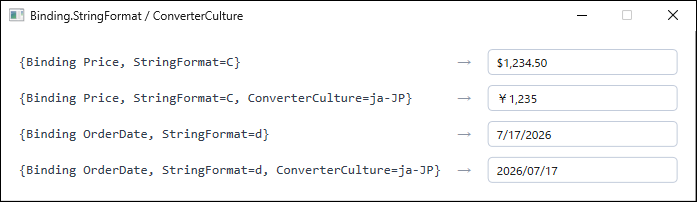
ConverterCulture, the binding uses the target element's Language property (xml:lang in XAML); since it is left unset here, the default en-US applies, so the currency symbol is $ and the date follows M/d/yyyy regardless of the OS regional setting.There are two main remedies.
The first is to specify ConverterCulture on an individual binding.
This suits fixing the culture per display.
<!-- Format only this binding with the Japanese culture -->
<TextBlock Text="{Binding Price, StringFormat=C, ConverterCulture=ja-JP}" />
The second is to align the default culture of the whole application.
Overriding the Language metadata of FrameworkElement with the current culture at startup applies to every subsequent binding.
// Run once at application startup
FrameworkElement.LanguageProperty.OverrideMetadata(
    typeof(FrameworkElement),
    new FrameworkPropertyMetadata(
        XmlLanguage.GetLanguage(CultureInfo.CurrentCulture.IetfLanguageTag)));
The second approach suits displaying the entire application with a consistent culture.
When only some values must use a different culture, the first approach using ConverterCulture is combined with it.
Constraint on ContentControl
On ContentControl-derived controls such as Label and Button, the Content property is typed as object.
Because Binding.StringFormat works only when the target property is of type string, StringFormat is ignored when binding to Content.
For these controls, the ContentStringFormat property is used instead.
<!-- Label: use ContentStringFormat, not StringFormat -->
<Label Content="{Binding Price}" ContentStringFormat="C" />

<!-- TextBlock.Text is string typed, so StringFormat applies directly -->
<TextBlock Text="{Binding Price, StringFormat=C}" />
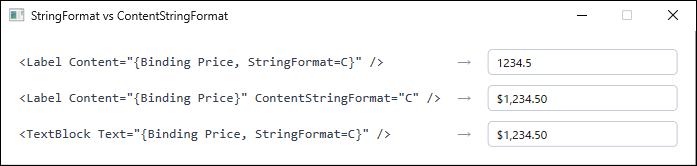
StringFormat on a Label's Content applies no formatting and the raw value is displayed. Using ContentStringFormat, or binding to the string-typed TextBlock.Text, produces the currency format.ContentStringFormat accepts both a bare specifier and a composite format string.
However, when ContentTemplate or ContentTemplateSelector is set, ContentStringFormat is ignored.
Because TextBlock.Text and TextBox.Text are of type string, StringFormat applies directly on them.
Escaping Curly Braces
When a format string begins with {, the XAML parser mistakes it for the start of a markup extension.
To avoid this, the string is prefixed with an empty pair of curly braces {}.
This {} cannot be omitted even when the format is wrapped in single quotes.
Whether the escape is required depends solely on whether the format begins with {, not on the quoting.
<!-- Begins with {, so escape with {} -->
<TextBlock Text="{Binding OrderDate, StringFormat={}{0:yyyy/MM/dd}}" />

<!-- Even when wrapped in single quotes, the leading {} is still required -->
<TextBlock Text="{Binding OrderDate, StringFormat='{}{0:yyyy/MM/dd}'}" />
In a case with leading literal text, such as StringFormat='Price: {0:C}', no {} is needed because the string does not begin with {.
Single quotes are a separate mechanism for including markup-extension delimiters such as commas and spaces in the format, distinct from escaping a leading {.
When the format both begins with { and contains a comma or space, both the {} escape and single quotes are used together.
Notes
StringFormatworks only when the target property is of typestring.ContentStringFormatis used for theContent(object type) of aContentControl.- Even on a two-way binding,
StringFormatapplies only in the source-to-target direction. It does not affect parsing of user input (target to source). - When
ConverterandStringFormatare combined, theConverteris applied first andStringFormatis applied to its result. - The culture used for formatting defaults to
en-US, not the OS regional setting. When the currency symbol or date order differs from what is expected, the culture is the likely cause. - A composite format on a single
Bindingsupports only the{0}placeholder.MultiBindingis used for multiple values.
Summary
Binding.StringFormat is the lightest way to format a number, currency, or date for display without writing a converter.
It is the first choice when the target is of type string and only a single value needs formatting.
For Label and Button, ContentStringFormat is the choice; for combining multiple values, MultiBinding.StringFormat; and when a value transformation or complex conditional logic is required, IValueConverter.
The following table summarizes the selection criteria by use case.
| Approach | Applies to | Multiple values | Best suited for |
|---|---|---|---|
Binding.StringFormat |
string properties (e.g., TextBlock.Text) |
No ({0} only) |
Formatting a single number, currency, or date for display |
ContentStringFormat |
ContentControl.Content (Label / Button) |
No | Formatting a value bound to Content |
MultiBinding.StringFormat |
string properties |
Yes ({0}, {1}, …) |
Embedding several properties into one string |
IValueConverter |
Any type | Depends on the converter | Conditional logic, type conversion, or two-way parsing |
Across all approaches, the shared caveat is that the culture used for formatting defaults to en-US.
To display currency and dates for a region, the culture is made explicit with ConverterCulture or by overriding the application-wide Language metadata.