Overview
Showing or hiding an element from a view model bool, and showing enum values under readable display names, are both written with IValueConverter in WPF.
The built-in BooleanToVisibilityConverter only has its default mapping of true to Visible and false to Collapsed; it cannot be told to invert or to produce Hidden.
So a custom converter is needed, and the “invert with ConverterParameter=True” approach does not invert when the implementation compares parameter with a bool.
This is because a ConverterParameter written as an attribute arrives as a string.
This article writes a BoolToVisibilityConverter whose inversion and Hidden are set through converter properties, and an EnumDescriptionConverter that reads the display name from a Description attribute.
It also measures the type in which ConverterParameter arrives, the layout difference between Hidden and Collapsed, the exceptions that an implementation without null checks throws for values without an attribute and for undefined values, and how the converter differs from a display property on the view model.
Prerequisites and Environment
- Framework: WPF on .NET 5 or later (because
Enum.GetValues<T>()is an API from .NET 5 onward). The code assumes C# 8 or later and a project with nullable reference types enabled (<Nullable>enable</Nullable>) - Architecture: MVVM. The view model base class
ObservableObjectis the minimal in-house implementation below; no external library is used - Verified on: .NET 10 / Windows 11. XAML was loaded with
XamlReader.Parsefor the measurements; compiled XAML was not measured. Not measured on .NET Framework 4.8 either - Scope:
IValueConverter(converting a single value). Not covered:IMultiValueConverterfor combining several values, the difference between theConvertBackreturn values (Binding.DoNothingandDependencyProperty.UnsetValue), and number/date formats and cultures. The return values are measured in the article on binding RadioButton to an enum, and cultures in the StringFormat article
The C# code in this article refers to the following namespaces with using.
In a project that uses the implicit using directives of .NET 6 and later (<ImplicitUsings>enable</ImplicitUsings>), the first two lines are unnecessary.
using System;
using System.Collections.Generic;
using System.ComponentModel;
using System.Globalization;
using System.Reflection;
using System.Runtime.CompilerServices;
using System.Windows;
using System.Windows.Data;
The view model base class has only a SetProperty that returns true when the value changes, and an OnPropertyChanged that fills in the caller’s property name through [CallerMemberName].
public abstract class ObservableObject : INotifyPropertyChanged
{
    public event PropertyChangedEventHandler? PropertyChanged;

    protected bool SetProperty<T>(ref T field, T value, [CallerMemberName] string? name = null)
    {
        if (EqualityComparer<T>.Default.Equals(field, value))
        {
            return false;
        }

        field = value;
        OnPropertyChanged(name);
        return true;
    }

    protected void OnPropertyChanged([CallerMemberName] string? name = null) =>
        PropertyChanged?.Invoke(this, new PropertyChangedEventArgs(name));
}
Raising the change of another property only when SetProperty returns true is used later on.
The example is an order screen whose view model has IsBusy (whether processing is running) and the order state Status.
The state enum carries the words to show on screen in Description attributes.
Shipped has no attribute.
public enum OrderStatus
{
    [Description("Awaiting payment")]
    AwaitingPayment,

    [Description("In progress")]
    InProgress,

    Shipped,
}

public sealed class OrderViewModel : ObservableObject
{
    private bool _isBusy;
    private OrderStatus _status;

    public bool IsBusy
    {
        get => _isBusy;
        set => SetProperty(ref _isBusy, value);
    }

    public OrderStatus Status
    {
        get => _status;
        set
        {
            if (SetProperty(ref _status, value))
            {
                OnPropertyChanged(nameof(StatusText));
            }
        }
    }

    public IReadOnlyList<OrderStatus> Statuses { get; } = Enum.GetValues<OrderStatus>();

    public string StatusText => EnumDescriptionConverter.Describe(Status);
}
Statuses feeds the choices of a ComboBox, and StatusText is the view-model-side display name compared with the converter later on.
Why the Status setter also raises the change of StatusText is shown in that comparison.
Basic Usage
IValueConverter has two methods: Convert from source to target, and ConvertBack from target to source.
A converter from bool to Visibility looks like this.
It holds the Visibility for true and for false in properties, so inversion and Hidden are expressed by setting different values in XAML.
public sealed class BoolToVisibilityConverter : IValueConverter
{
    public Visibility TrueValue { get; set; } = Visibility.Visible;

    public Visibility FalseValue { get; set; } = Visibility.Collapsed;

    public object Convert(object? value, Type targetType, object? parameter, CultureInfo culture) =>
        value is true ? TrueValue : FalseValue;

    public object ConvertBack(object? value, Type targetType, object? parameter, CultureInfo culture) =>
        Binding.DoNothing;
}
value is true holds only when the value is the bool true.
A null source and the string "True" both become FalseValue (the two right-hand columns of the table in the next section).
There is no use for converting Visibility back to bool, so ConvertBack returns Binding.DoNothing instead of a value.
The converter instance goes into resources and is passed to the binding’s Converter through StaticResource.
Instances of the same class with different property values, stored under different keys, serve as the inverting and the Hidden variants.
<Window.Resources>
  <BooleanToVisibilityConverter x:Key="BooleanToVisibility" />
  <local:BoolToVisibilityConverter x:Key="BoolToVisibility" />
  <local:BoolToVisibilityConverter x:Key="InverseBoolToVisibility" TrueValue="Collapsed" FalseValue="Visible" />
  <local:BoolToVisibilityConverter x:Key="BoolToHidden" FalseValue="Hidden" />
</Window.Resources>

<Border Visibility="{Binding IsBusy, Converter={StaticResource BoolToVisibility}}" />
<Border Visibility="{Binding IsBusy, Converter={StaticResource InverseBoolToVisibility}}" />
XAML converts attribute values such as TrueValue="Collapsed" into enum values to match the Visibility-typed property.
The first entry, BooleanToVisibilityConverter, is the converter built into WPF and is listed for comparison.
local is the xmlns:local that points to the namespace of the converters.
Converting bool to Visibility
For each resource above and the resources placed in the next section, a Border’s Visibility was bound and read.
The two IsBusy columns are after showing with IsBusy set to true and after changing it to false; the two right-hand columns put null and the string "True" into a source property of type object.
The last three rows are implementations that specify inversion through ConverterParameter, covered in the next section.
| binding | IsBusy = True | IsBusy = False | source null | source "True" (string) |
|---|---|---|---|---|
| Converter={StaticResource BooleanToVisibility} | Visible | Collapsed | Collapsed | Collapsed |
| Converter={StaticResource BooleanToVisibility}, ConverterParameter={StaticResource True} | Visible | Collapsed | Collapsed | Collapsed |
| Converter={StaticResource BoolToVisibility} | Visible | Collapsed | Collapsed | Collapsed |
| Converter={StaticResource InverseBoolToVisibility} | Collapsed | Visible | Visible | Visible |
| Converter={StaticResource BoolToHidden} | Visible | Hidden | Hidden | Hidden |
| Converter={StaticResource ParameterBoolToVisibility}, ConverterParameter=True | Visible | Collapsed | Collapsed | Collapsed |
| Converter={StaticResource ParameterBoolToVisibility}, ConverterParameter={StaticResource True} | Collapsed | Visible | Visible | Visible |
| Converter={StaticResource StringParameterBoolToVisibility}, ConverterParameter=True | Collapsed | Visible | Visible | Visible |
The Visibility of a Border shown in a Window, read on .NET 10 / Windows 11.
The built-in BooleanToVisibilityConverter and BoolToVisibility with its default values give the same result.
InverseBoolToVisibility, with TrueValue and FalseValue swapped, inverts, and BoolToHidden (FalseValue="Hidden") becomes Hidden on false.
The built-in converter has no properties to specify these.
As the second row shows, the built-in converter does not invert even when a bool True (the sys:Boolean resource placed in the next section) is passed through ConverterParameter.
The public properties with a setter were listed for the two types.
| type | properties |
|---|---|
| BooleanToVisibilityConverter | (none) |
| BoolToVisibilityConverter | TrueValue (Visibility), FalseValue (Visibility) |
On .NET 10 / Windows 11, the result of Type.GetProperties(BindingFlags.Public | BindingFlags.Instance) filtered to properties with a public setter.
Hidden and Collapsed both stop drawing the element, but layout treats them differently.
A vertical StackPanel holds a text above, a Border with Height="40", and a text below, and the position of the text below was compared while the Border was hidden.
<StackPanel>
  <TextBlock Text="above" />
  <Border Height="40" Background="#FFB4D2F0"
          Visibility="{Binding IsBusy, Converter={StaticResource BoolToHidden}}">
    <TextBlock Text="details" VerticalAlignment="Center" Margin="6,0" />
  </Border>
  <TextBlock Text="below" />
</StackPanel>
Each of the three panels in the figure replaces the converter in this Visibility binding with the one in the panel’s heading and sets IsBusy to the heading’s value.
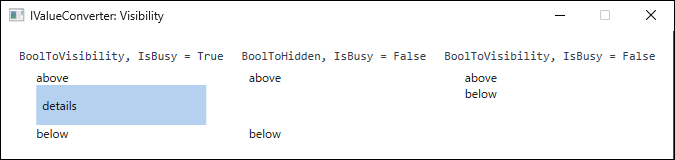
Hidden in the middle keeps the Border's space, and Collapsed on the right removes it.| Border | top of the next TextBlock |
|---|---|
| Visibility = Visible | 55.96 px |
| Visibility = Hidden | 55.96 px |
| Visibility = Collapsed | 15.96 px |
In the same StackPanel as the figure above, the top of the TextBlock after the Border, read as the position from the top-left of the StackPanel (.NET 10 / Windows 11; the TextBlock uses the default font and size).
With Hidden the position is the same as with Visible, and with Collapsed it moves up by the Border’s height of 40.
Choose Hidden when hiding must not move the elements after it (for example, input fields below shifting up), and Collapsed when the freed space should close up.
Specifying Inversion with ConverterParameter
Inversion can also be specified through ConverterParameter instead of a converter property.
The following implementation inverts when parameter is the bool true.
public sealed class ParameterBoolToVisibilityConverter : IValueConverter
{
    public object Convert(object? value, Type targetType, object? parameter, CultureInfo culture)
    {
        bool visible = value is true;
        if (parameter is true)
        {
            visible = !visible;
        }

        return visible ? Visibility.Visible : Visibility.Collapsed;
    }

    public object ConvertBack(object? value, Type targetType, object? parameter, CultureInfo culture) =>
        Binding.DoNothing;
}
It is placed in resources and used with ConverterParameter=True.
A second binding passes a bool resource named True instead.
<Window xmlns:sys="clr-namespace:System;assembly=System.Runtime" ...>
  <Window.Resources>
    <local:ParameterBoolToVisibilityConverter x:Key="ParameterBoolToVisibility" />
    <sys:Boolean x:Key="True">True</sys:Boolean>
  </Window.Resources>

  <Border Visibility="{Binding IsBusy, Converter={StaticResource ParameterBoolToVisibility}, ConverterParameter=True}" />
  <Border Visibility="{Binding IsBusy, Converter={StaticResource ParameterBoolToVisibility}, ConverterParameter={StaticResource True}}" />
</Window>
assembly=System.Runtime in sys is the form measured on .NET.
On .NET Framework, use assembly=mscorlib as in the official documentation’s examples (not measured in this article).
In the first table of the previous section (the Visibility of a Border), the row passing ConverterParameter=True to ParameterBoolToVisibility is Visible for IsBusy True and Collapsed for False, so nothing was inverted.
No exception occurs, so the mistake is noticed only by seeing on screen that the display is not reversed.
The cause is that a value written as an attribute string in ConverterParameter is passed as is, without type conversion.
Binding.ConverterParameter is a property of type object, so XAML has nothing to tell it to turn True into a bool.
A recording converter read the type of the value that reached parameter.
| ConverterParameter in XAML | type | value |
|---|---|---|
| ConverterParameter=True | System.String | True |
| ConverterParameter=1 | System.String | 1 |
| ConverterParameter=Hidden | System.String | Hidden |
| ConverterParameter={x:Static Visibility.Hidden} | System.Windows.Visibility | Hidden |
| ConverterParameter={StaticResource True} | System.Boolean | True |
GetType().FullName and ToString() of the parameter received by Convert on .NET 10 / Windows 11. True is the sys:Boolean resource in the XAML above.
True, 1, and Hidden all arrive as System.String.
An enum value passed as the value itself with x:Static, as in {x:Static Visibility.Hidden}, and a bool passed as a sys:Boolean resource through StaticResource, each arrive with their own type.
In the first table of the previous section, the row passing ConverterParameter={StaticResource True} to ParameterBoolToVisibility inverts.
Another fix is to accept that the parameter arrives as a string and compare parameter with the string "True".
public sealed class StringParameterBoolToVisibilityConverter : IValueConverter
{
    public object Convert(object? value, Type targetType, object? parameter, CultureInfo culture)
    {
        bool visible = value is true;
        if (string.Equals(parameter as string, "True", StringComparison.OrdinalIgnoreCase))
        {
            visible = !visible;
        }

        return visible ? Visibility.Visible : Visibility.Collapsed;
    }

    public object ConvertBack(object? value, Type targetType, object? parameter, CultureInfo culture) =>
        Binding.DoNothing;
}
As the last row of the first table in the previous section shows (ConverterParameter=True passed to StringParameterBoolToVisibility), this implementation inverts.
A misspelling, however, behaves differently from the property approach.
A misspelled value was compared for this implementation, placed in resources with <local:StringParameterBoolToVisibilityConverter x:Key="StringParameterBoolToVisibility" />, and for the FalseValue of BoolToVisibilityConverter.
| XAML | result |
|---|---|
| Converter={StaticResource StringParameterBoolToVisibility}, ConverterParameter=True | no exception; IsBusy=True → Collapsed, IsBusy=False → Visible |
| Converter={StaticResource StringParameterBoolToVisibility}, ConverterParameter=Ture | no exception; IsBusy=True → Visible, IsBusy=False → Collapsed |
| <local:BoolToVisibilityConverter x:Key="BoolToHidden" FalseValue="Hidden" /> | no exception from XamlReader.Parse |
| <local:BoolToVisibilityConverter x:Key="BoolToHidden" FalseValue="Hiden" /> | XamlParseException from XamlReader.Parse |
On .NET 10 / Windows 11. The first two rows read the Visibility of the bound Border; the last two read whether loading XAML containing the resource with XamlReader.Parse threw, and the exception type. The third row is a control with the correct spelling in the same XAML.
ConverterParameter=Ture fails silently and just does not invert.
While the same XAML with the correct FalseValue="Hidden" throws nothing, FalseValue="Hiden" fails with XamlParseException when loaded through XamlReader.Parse.
Property values go through conversion to Visibility, so a misspelled value fails in that conversion.
Whether compiled XAML reports this mistake at build time or at run time was not measured.
As the way to specify inversion, use the converter properties.
When enum values are passed through ConverterParameter (as when binding RadioButtons to an enum), writing them as strings makes the on-screen selection disappear; that case is measured in the article on binding RadioButton to an enum.
Converting an Enum to a Display Name
Enum value names (AwaitingPayment) cannot contain spaces, so the words for the screen are kept separately.
A converter that returns the Description attribute’s text, and the value name when there is no attribute, looks like this.
public sealed class EnumDescriptionConverter : IValueConverter
{
    public object Convert(object? value, Type targetType, object? parameter, CultureInfo culture) =>
        value is Enum e ? Describe(e) : string.Empty;

    public object ConvertBack(object? value, Type targetType, object? parameter, CultureInfo culture) =>
        Binding.DoNothing;

    public static string Describe(Enum value)
    {
        string name = value.ToString();
        FieldInfo? field = value.GetType().GetField(name);
        return field?.GetCustomAttribute<DescriptionAttribute>()?.Description ?? name;
    }
}
GetField returns null for a value that the enum does not define ((OrderStatus)99).
ToString() returns the digits "99" instead of a name, and there is no field with that name.
GetCustomAttribute returns null when there is no attribute.
Describe checks both nulls and falls back to the value name (the digits for an undefined value).
Describe is public static so that the view model’s StatusText can use the same logic.
This implementation was compared with the following one, which skips the null checks with !.
public object Convert(object? value, Type targetType, object? parameter, CultureInfo culture) =>
    value!.GetType().GetField(value.ToString()!)!.GetCustomAttribute<DescriptionAttribute>()!.Description;
TextBlock.Text was bound to a source property of type object, shown with AwaitingPayment (a value absent from the table’s source value column), and then the source was set on the UI thread to each value in the table.
FileAttributes.ReadOnly | FileAttributes.Hidden is a combination of two values of a .NET enum marked [Flags].
| source value | EnumDescriptionConverter | without null checks |
|---|---|---|
| OrderStatus.InProgress | "In progress" | "In progress" |
| OrderStatus.Shipped | "Shipped" | NullReferenceException thrown to the setter's caller (Text stays "Awaiting payment") |
| (OrderStatus)99 | "99" | ArgumentNullException thrown to the setter's caller (Text stays "Awaiting payment") |
| FileAttributes.ReadOnly | FileAttributes.Hidden | "ReadOnly, Hidden" | ArgumentNullException thrown to the setter's caller (Text stays "Awaiting payment") |
| null | "" | NullReferenceException thrown to the setter's caller (Text stays "Awaiting payment") |
TextBlock.Text after assigning each value to the source property on .NET 10 / Windows 11. Exceptions are the types caught by try / catch around the assignment.
The implementation without null checks throws NullReferenceException from .Description for Shipped (no attribute), and from value!.GetType() for a null source.
For the undefined 99 and the combined value, a null field reaches GetCustomAttribute, which throws ArgumentNullException.
The exception propagates straight to the code that called the source setter, and the on-screen Text keeps its previous value.
The official documentation for IValueConverter.Convert also states that the data binding engine does not catch exceptions thrown by a converter.
Where an exception that the caller does not catch ends up is measured in the article on unhandled exceptions.
Do not throw from a converter; fall back to a value that can be displayed.
The combined value does not become attribute text even with EnumDescriptionConverter; the ToString() result "ReadOnly, Hidden" is shown as is.
There is no field with that name, so GetField returns null.
Giving display names to combinations of a [Flags] enum needs separate code that splits the value with Enum.HasFlag and joins the display names (not written in this article).
The same converter works for ComboBox items.
Inside ItemTemplate, the item itself (the enum value) is the data context, so the conversion is applied to {Binding} without a Path.
<Window.Resources>
  <local:EnumDescriptionConverter x:Key="EnumDescription" />
</Window.Resources>

<ComboBox ItemsSource="{Binding Statuses}" SelectedItem="{Binding Status}">
  <ComboBox.ItemTemplate>
    <DataTemplate>
      <TextBlock Text="{Binding Converter={StaticResource EnumDescription}}" />
    </DataTemplate>
  </ComboBox.ItemTemplate>
</ComboBox>
The ComboBox was shown with Status set to AwaitingPayment, the drop-down was opened, and the second item was selected.
| what is read | value |
|---|---|
| selection box text (Status = AwaitingPayment) | "Awaiting payment" |
| item texts in the drop-down | "Awaiting payment", "In progress", "Shipped" |
| Status after selecting the second item | InProgress |
| type of SelectedItem | OrderStatus |
| selection box text after that | "In progress" |
Values read on .NET 10 / Windows 11. The item was selected by setting SelectedIndex to 1, and the view model’s Status and the type of ComboBox.SelectedItem were read.
The selection box and the drop-down show display names, SelectedItem stays an enum value, and the view model’s Status receives InProgress.
Only the display is converted, so the SelectedItem binding needs no conversion.
Different ways of building the collection passed to ItemsSource are covered in the article on ComboBox ItemsSource.
Converter Versus View Model Property
The display name can also be exposed as a view model property (StatusText) without a converter.
However, StatusText is computed from Status, so the screen is not updated unless the change of StatusText is raised when Status changes.
The OrderViewModel at the top calls OnPropertyChanged(nameof(StatusText)) in the Status setter.
The following view model lacks that line.
public sealed class SilentOrderViewModel : ObservableObject
{
    private OrderStatus _status;

    public OrderStatus Status
    {
        get => _status;
        set => SetProperty(ref _status, value);
    }

    public string StatusText => EnumDescriptionConverter.Describe(Status);
}
TextBlock.Text was bound to Status through the converter and to StatusText of each of the two view models, and Status was changed from AwaitingPayment to Shipped.
| display | Text before | Text after |
|---|---|---|
| converter: Text="{Binding Status, Converter={StaticResource EnumDescription}}" | "Awaiting payment" | "Shipped" |
| view model: StatusText, also notified in the Status setter | "Awaiting payment" | "Shipped" |
| view model: StatusText, not notified | "Awaiting payment" | "Awaiting payment" |
TextBlock.Text read before and after changing Status on .NET 10 / Windows 11.
The converter shows the new display name from the change notification of Status alone.
The view model that does not raise StatusText keeps showing the old display name, without an exception.
Choose between the two as follows.
| Condition | Approach | Reason |
|---|---|---|
| The same conversion is used on several screens or for several enums | Converter | One instance in resources can be attached to any binding |
Converting values that do not go through a view model property, such as ComboBox items |
Converter | There is no per-item property |
| The display name is also used outside the screen (logs, CSV), or should be tested together with the state in view model tests | View model property | StatusText after changing Status can be read from the view model alone |
| The display depends on several properties | View model property | An IValueConverter receives the value of only one binding, so updating on each source property’s change needs an IMultiValueConverter or a view model property that is raised from each source property |
With Describe as a static method, as in this article, both the converter and the view model build display names with the same rule.
Constraints and Boundaries
- The text passed to the
Descriptionattribute is a constant. As written, it does not change with the display language. For several languages, either derive an attribute that overrides the (virtual)Descriptionproperty to read resources (the official documentation for DescriptionAttribute.DescriptionValue names this use), or look up resource files (.resx) insideDescribe. Neither is measured in this article. - Combinations of a
[Flags]enum get no display name. As the first table in “Converting an Enum to a Display Name” (the one per source value) shows, the list of names fromToString()is displayed as is. ConvertBackassumes display-only conversion. Every binding in this article is for display, and the paths on whichConvertBackis called are not measured. That returningBinding.DoNothingleaves the source unchanged is measured in the article on binding RadioButton to an enum. When attaching a converter to a binding that accepts input (such asTextBox.Text), write the reverse conversion inConvertBack.
Summary
For bool to Visibility, write one converter that holds the values for true and false in properties, and put instances with different property values in resources for the inverting and Hidden variants.
Specifying inversion with ConverterParameter=True passes a string, so an implementation that compares with a bool does not invert and throws no exception.
To pass the value itself through ConverterParameter, pass an enum value with x:Static, and a bool as a sys:Boolean resource through StaticResource.
Show enum display names with a converter that reads the Description attribute, and fall back to a displayable value instead of throwing for values without an attribute, undefined values, and null.
Use a converter when the same conversion serves many screens or ComboBox items, and a view model property when it is also needed for tests or outside the screen; with the latter, raise the change of the display property in the setter of the property it depends on.