WPF DataGrid provides built-in sorting, but some business workflows require an explicit operation to restore the initial unsorted state.
This article organizes practical reset strategies for single-column and multi-column sorting scenarios.
Overview
This article covers the following approaches for resetting WPF DataGrid sorting.
- Explicitly clearing sorting in code.
- Controlling unsorted state through the
Sortingevent. - Resetting sorting from ViewModel with
ICollectionView. - Encapsulating tri-state logic into a reusable Behavior.
Prerequisites / Environment
- Framework: WPF
DataGrid. - Target versions: .NET Framework 4.8 / .NET 6 or later.
- Language: C# 9 or later.
- Architecture: MVVM or code-behind.
- Scope: single-column and multi-column sorting requirements.
- Verification environment: .NET 10 / Windows 11
The tables in this article were measured in the environment above.
Each caption states how its table was measured.
The following points were confirmed in that environment:
- The sort state is held in two places:
SortDescriptionson theICollectionViewandSortDirectionon the column. - Clearing
SortDescriptionsalone leavesSortDirectionon the column, so the header arrow stays. - Adding to
SortDescriptionsalone does not setSortDirectionon the column. - Adding two entries to
SortDescriptionsproduces a multi-column sort: rows that tie on the first condition are ordered by the second.
Problem
In WPF DataGrid, production requirements often include a command that resets current sorting back to the initial state.
Default user interaction alone may not provide a consistent reset timing across screens.
Cause / Background
In WPF DataGrid, Shift + column-header click is a default operation for adding multi-column sorting.
It is not a built-in shortcut to clear sorting.
- Regular click: toggles ascending and descending on the selected column.
- Shift+Click: appends the selected column to the existing sort criteria.
For this reason, explicit reset logic is required when an application needs deterministic unsorted behavior.
The sort state lives in two places. The table below records both after each operation.
| operation | SortDescriptions | column.SortDirection | order |
|---|---|---|---|
| initial | 0 | null | carol, alice, bob |
| SortDescriptions.Add only | 1 | null | alice, bob, carol |
| + column.SortDirection | 1 | Ascending | alice, bob, carol |
| then SortDescriptions.Clear() only | 0 | Ascending | carol, alice, bob |
| + clear column.SortDirection | 0 | null | carol, alice, bob |
| one SortDescription (Score desc), with a tie | 1 | null | alice, carol, anna, bob |
| two SortDescriptions (Score desc, Name asc), with a tie | 2 | null | alice, anna, carol, bob |
| ItemsSource = ICollectionView; view.SortDescriptions.Clear() | 0 | Ascending | carol, alice, bob |
| column header click (standard sort) | 1 | Ascending | alice, bob, carol |
Measured on .NET 10 / Windows 11. SortDescriptions is the number of sort conditions on the view; column.SortDirection is the property that drives the arrow in the column header. Every row but the last operates on them directly from code. The two rows marked with a tie add a row, anna, with the same Score as carol.
On the row that calls SortDescriptions.Clear(), the order is back to its initial state while column.SortDirection still reads Ascending.
The header keeps showing its arrow in that state, making it look as though the sort is still applied.
The reverse holds on the row that only adds a SortDescription: the order changes while SortDirection stays null.
Touching one of them from code never updates the other. Both have to be set explicitly, in either direction.
The rows marked with a tie show the multi-column sort: with only Score, carol and anna, who tie, keep their original order; adding Name puts anna first. Shift-clicking builds exactly that state; it does not clear anything.
The last row is the contrast: the standard sort that a click on the column header runs. That path updates SortDescriptions and SortDirection together.
This is why the arrow and the order never disagree when the user sorts; they diverge only once code touches one side alone.
Four Ways to Reset
The reset strategy should be selected by architecture and UX requirements.
- Clear both sort descriptors and header indicators explicitly.
- Use
Sortingevent logic when tri-state transition is required. - Manage sorting in
ICollectionViewfor MVVM-oriented implementations. - Use a Behavior when the same rule must be shared across multiple screens.
Explicitly clear sorting in code
The most direct implementation clears both data-level sort descriptors and visual sort arrows.
using System.Windows.Controls;

public static class DataGridSortHelper
{
    public static void ClearDataGridSort(DataGrid dataGrid)
    {
        if (dataGrid == null) return;

        // Clear data-level sort descriptors.
        dataGrid.Items.SortDescriptions.Clear();

        // Clear header arrows.
        foreach (var column in dataGrid.Columns)
        {
            column.SortDirection = null;
        }

        // Refresh the view.
        dataGrid.Items.Refresh();
    }
}
This approach is effective for full reset commands and keeps UI indicators synchronized with actual sort state.
Auto-reset on third click with custom sorting behavior
To implement Ascending -> Descending -> Unsorted, intercept the Sorting event at the transition after descending.
The three states appear as follows.
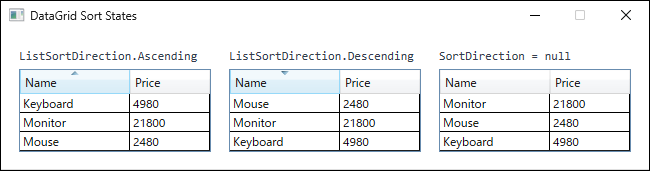
SortDescription and the header arrow are removed. Because this example sorts on a single column, clearing it returns the rows to the order of the underlying collection; when several columns are sorted, the remaining descriptors still apply and the original order is not necessarily restored.XAML
<DataGrid x:Name="MyDataGrid"
          Sorting="DataGrid_Sorting" />
This event hook allows custom handling before the default sorting pipeline completes.
When columns such as DataGridTemplateColumn are used, SortMemberPath should be set explicitly for columns that need sort-reset handling.
C#
using System.ComponentModel;
using System.Linq;
using System.Windows.Controls;

private void DataGrid_Sorting(object sender, DataGridSortingEventArgs e)
{
    if (sender is not DataGrid dataGrid) return;

    if (e.Column.SortDirection == ListSortDirection.Descending)
    {
        e.Handled = true; // Cancel default sorting behavior.

        // Remove only the sort descriptor for the target column.
        var target = dataGrid.Items.SortDescriptions
            .FirstOrDefault(sd => sd.PropertyName == e.Column.SortMemberPath);

        if (!string.IsNullOrEmpty(target.PropertyName))
        {
            dataGrid.Items.SortDescriptions.Remove(target);
        }

        e.Column.SortDirection = null;
        dataGrid.Items.Refresh();
    }
}
This logic removes only the clicked column from sorting, so existing sort conditions on other columns can remain intact.
Reset from ViewModel using ICollectionView
In MVVM, sorting should generally be controlled in the view model layer instead of manipulating DataGrid directly.
using System.Collections.ObjectModel;
using System.ComponentModel;
using System.Windows.Data;

public class SampleViewModel
{
    public ObservableCollection<RowItem> Items { get; } = new();
    public ICollectionView ItemsView { get; }

    public SampleViewModel()
    {
        ItemsView = CollectionViewSource.GetDefaultView(Items);
    }

    public void ClearSort()
    {
        ItemsView.SortDescriptions.Clear();
        ItemsView.Refresh();
    }
}

public class RowItem
{
    public string Name { get; set; } = "";
    public int Value { get; set; }
}
Managing SortDescriptions in ItemsView improves testability and keeps view logic thin.
This ClearSort releases the view order only. DataGridColumn.SortDirection stays on the DataGrid side, so the rows return to their initial order while the header arrow remains displayed (the ItemsSource = ICollectionView row of the table above measures exactly that: clearing the view’s SortDescriptions left SortDirection at Ascending).
This ClearSort also clears only SortDescriptions, so it does not undo sorting through ListCollectionView.CustomSort. Running the same steps on a view with CustomSort set left CustomSort in place and the order unchanged. On a screen that uses CustomSort, have ClearSort also assign null to CustomSort.
| step | CustomSort | SortDescriptions | order (Price) |
|---|---|---|---|
| initial | null | 0 | 21800, 2480, 4980 |
| CustomSort = Price descending | set | 0 | 21800, 4980, 2480 |
| SortDescriptions.Clear() + Refresh() | set | 0 | 21800, 4980, 2480 |
| CustomSort = null + Refresh() | null | 0 | 21800, 2480, 4980 |
Measured on .NET 10 / Windows 11 by applying each step in turn to a ListCollectionView over the sample data. The SortDescriptions column is the number of conditions.
Clearing the arrow as well needs a separate step that sets SortDirection to null on the DataGrid, since the ViewModel cannot reach the column state. Folding that step into a Behavior lets a single command reset both.
<DataGrid ItemsSource="{Binding ItemsView}" />
With this binding, sorting reset responsibility remains in ViewModel commands.
Share it as a Behavior
When the same tri-state rule is required in multiple screens, encapsulate the logic as a Behavior (Microsoft.Xaml.Behaviors.Wpf).
using Microsoft.Xaml.Behaviors;
using System.ComponentModel;
using System.Linq;
using System.Windows.Controls;

public class TriStateSortBehavior : Behavior<DataGrid>
{
    protected override void OnAttached()
    {
        base.OnAttached();
        AssociatedObject.Sorting += OnSorting;
    }

    protected override void OnDetaching()
    {
        AssociatedObject.Sorting -= OnSorting;
        base.OnDetaching();
    }

    private void OnSorting(object sender, DataGridSortingEventArgs e)
    {
        if (sender is not DataGrid grid) return;

        if (e.Column.SortDirection == ListSortDirection.Descending)
        {
            e.Handled = true;

            var sd = grid.Items.SortDescriptions
                .FirstOrDefault(x => x.PropertyName == e.Column.SortMemberPath);

            if (!string.IsNullOrEmpty(sd.PropertyName))
            {
                grid.Items.SortDescriptions.Remove(sd);
            }

            e.Column.SortDirection = null;
            grid.Items.Refresh();
        }
    }
}
This design reduces duplicated event handlers and centralizes behavior-level customization.
<Window
    xmlns:i="http://schemas.microsoft.com/xaml/behaviors"
    xmlns:local="clr-namespace:YourApp.Behaviors">
    <DataGrid>
        <i:Interaction.Behaviors>
            <local:TriStateSortBehavior />
        </i:Interaction.Behaviors>
    </DataGrid>
</Window>
XAML usage remains compact, which helps apply identical sorting rules consistently across screens.
How to Choose
Which approach applies is settled by what triggers the reset and by how many screens share the behavior.
Resetting everything at once from a button or menu calls for the explicit clear.
Placing SortDescriptions.Clear() next to SortDirection = null is all it takes, which makes it the fastest to adopt. It does reference the DataGrid from code-behind, so MVVM separation loosens.
Keeping the whole interaction on the header calls for tri-state handling in the Sorting event.
Ascending, descending and unsorted all live in one gesture. Decide up front whether a reset clears one column or all of them, or the event handling grows complicated.
Strict MVVM with a command-driven reset calls for ICollectionView.
Sort state lives on the ViewModel side, which makes it testable without the UI. It assumes the View and ViewModel responsibilities are already separated.
Applying the same rule across several DataGrids calls for a Behavior.
One line of XAML per screen carries it across, cutting duplicated code. Provide extension points for the parts that differ per screen.
Comparing the Approaches
| Approach | Pros | Cons | Best suited for |
|---|---|---|---|
Explicit clear (SortDescriptions.Clear + SortDirection = null) |
Simple to implement and quick to adopt. | Requires a DataGrid reference, loosening MVVM purity. |
Clearing everything at once per screen. |
Tri-state handling in the Sorting event |
Unifies the UX into ascending, descending and unsorted. | Event handling grows complex; per-column requirements need sorting out. | Prioritizing an interaction that lives entirely on the header. |
ICollectionView managed by the ViewModel |
Testable, with minimal UI dependency. | Presumes a design that separates View and ViewModel responsibilities. | Strict MVVM with a command-driven reset. |
| Behavior | Carries across screens easily and cuts duplication. | Needs extension points for per-screen differences. | Applying one sorting rule to several DataGrids. |
Notes
- Clearing
SortDescriptionsalone leaves header arrows out of sync with actual data order. - In the
Sortingevent example, if reset logic usesSortMemberPathas the key, columns withoutSortMemberPathcan fail to reset as expected. - For multi-column sorting, requirements should define whether reset means full clear or only target-column clear.
Summary
Sort state in a WPF DataGrid lives in two places — ICollectionView.SortDescriptions and DataGridColumn.SortDirection — and touching only one of them from code leaves them disagreeing. A reset has to restore both.
The deciding factors are what triggers the reset and how many screens share the behavior.
Use the explicit clear for a button-driven reset, the Sorting event to keep it on the header, ICollectionView for strict MVVM, and a Behavior to carry one rule across screens.
Related Articles
- Implementing Column Sorting in WPF DataGrid
- Using DataGridTemplateColumn for Display and Edit Templates in WPF
- DataGrid (WPF Standard Control Demo App): measures that a third header click keeps the sort, and how to end an edit before sorting from code