Overview
In WPF DataGrid, the standard way to switch controls between display mode and cell edit mode is to separate CellTemplate and CellEditingTemplate in DataGridTemplateColumn.
This article explains the core implementation, common applied patterns, and practical criteria for deciding when CellEditingTemplate should be used.
Prerequisites / Environment
- Framework / Language: .NET 8 / C# 12
- Target control / feature: WPF
DataGrid - Architecture: MVVM
- Other constraints: A grid designed for both high readability in listing and efficient interaction during editing
- Verification environment: .NET 10 / Windows 11
The figures in this article come from reading the type of the element actually placed in a DataGrid cell in the environment above.
The following points were confirmed in that environment:
- While displaying, the cell holds the element from
CellTemplate; while editing, it holds the one fromCellEditingTemplate. - Calling
BeginEditswaps the element type for real.
Problem
When only standard columns such as DataGridTextColumn are used, display mode and edit mode often look almost identical.
This leads to two frequent issues: too many input-like controls in a read-focused list view, and insufficient editing assistance when users actually start editing.
Cause / Background
Display mode and edit mode have different goals.
Display mode prioritizes lightweight rendering and readability, while edit mode prioritizes input constraints and operability.
Trying to satisfy both goals with one control usually compromises one side.
DataGrid already provides a mode switch mechanism, so separating display and editing templates is the more maintainable design.
That the element in the cell is genuinely swapped between display and editing can be measured.
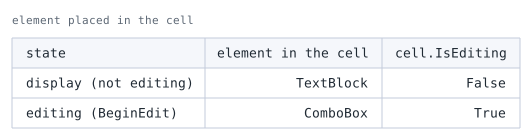
DataGridTemplateColumn holding a TextBlock in its CellTemplate and a ComboBox in its CellEditingTemplate. The element type is read out of the visual tree.The element itself is replaced. Rather than one control changing appearance, the CellTemplate content is discarded and the CellEditingTemplate content is created.
A heavy control in the editing template therefore costs nothing while the cell is merely displaying.
Solution
Use DataGridTemplateColumn and define CellTemplate for normal display and CellEditingTemplate for editing.
DataGrid switches between these templates automatically when editing starts and ends.
This separation keeps the list UI simple while still enabling richer editing controls such as TextBox, ComboBox, or DatePicker.
Implementation
The first example shows the minimum recommended structure: TextBlock for display and TextBox for editing.
This is the clearest way to separate read and edit responsibilities.
<DataGrid ItemsSource="{Binding Items}">
  <DataGrid.Columns>
    <DataGridTemplateColumn Header="Name">
      <DataGridTemplateColumn.CellTemplate>
        <DataTemplate>
          <TextBlock Text="{Binding Name}" />
        </DataTemplate>
      </DataGridTemplateColumn.CellTemplate>
      <DataGridTemplateColumn.CellEditingTemplate>
        <DataTemplate>
          <TextBox Text="{Binding Name, Mode=TwoWay, UpdateSourceTrigger=PropertyChanged}" />
        </DataTemplate>
      </DataGridTemplateColumn.CellEditingTemplate>
    </DataGridTemplateColumn>
  </DataGrid.Columns>
</DataGrid>
When editing starts, the grid uses CellEditingTemplate.
When editing ends, it returns to CellTemplate.
No manual event-based UI switching is required.
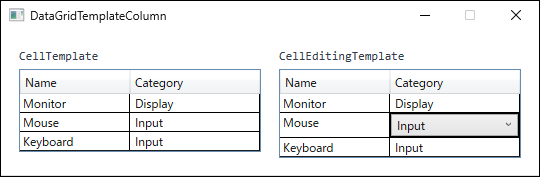
DataGridTemplateColumn. On the right, only the Category cell of the second row was put into edit mode, and only that cell switched to the ComboBox from CellEditingTemplate. Every other cell still uses CellTemplate.The next pattern applies input constraints with ComboBox only during editing.
This pattern reduces invalid input while keeping normal display lightweight.
<DataGridTemplateColumn Header="Category">
  <DataGridTemplateColumn.CellTemplate>
    <DataTemplate>
      <TextBlock Text="{Binding Category}" />
    </DataTemplate>
  </DataGridTemplateColumn.CellTemplate>
  <DataGridTemplateColumn.CellEditingTemplate>
    <DataTemplate>
      <ComboBox
        ItemsSource="{Binding DataContext.Categories, RelativeSource={RelativeSource AncestorType=DataGrid}}"
        SelectedItem="{Binding Category, Mode=TwoWay}" />
    </DataTemplate>
  </DataGridTemplateColumn.CellEditingTemplate>
</DataGridTemplateColumn>
The candidate list is read from the grid-level DataContext, which keeps row item data and selectable options cleanly separated.
This structure scales better when option lists need localization or central management.
A single-template approach is also possible by binding to DataGridCell.IsEditing and toggling visibility with a trigger.
This can satisfy special UI requirements, but it tends to increase XAML complexity.
<DataTemplate>
  <Grid>
    <TextBlock x:Name="display" Text="{Binding Name}" />
    <TextBox x:Name="editor" Text="{Binding Name, Mode=TwoWay}" Visibility="Collapsed" />
    <DataTemplate.Triggers>
      <DataTrigger
        Binding="{Binding RelativeSource={RelativeSource AncestorType=DataGridCell}, Path=IsEditing}"
        Value="True">
        <Setter TargetName="display" Property="Visibility" Value="Collapsed" />
        <Setter TargetName="editor" Property="Visibility" Value="Visible" />
      </DataTrigger>
    </DataTemplate.Triggers>
  </Grid>
</DataTemplate>
This approach is valid for specific cases, but CellTemplate plus CellEditingTemplate should remain the default policy for maintainability and predictability.
Notes
- For simple text-only editing, prefer
DataGridTextColumnand avoid unnecessary template customization. - Heavy editing controls should appear only in edit mode; rendering them in normal mode increases UI cost under virtualization.
- Trigger-based single-template switching is flexible but usually increases focus-management and keyboard-navigation complexity.
- When the editing control is written by hand in
CellEditingTemplate,Validation.ErrorTemplatecan be set on it as usual. The template renders on the adorner layer, so display depends on the visual tree providing one.
Columns whose editing element is generated by the framework, such asDataGridTextColumn, cannot use that approach and rely onEditingElementStyleinstead (see Why WPF Validation Errors Are Not Displayed, and Choosing Between IDataErrorInfo and INotifyDataErrorInfo).
Alternatives / Comparison
CellTemplateandCellEditingTemplate: clear separation of concerns and the best fit when display and edit UI differ.- Single template with
DataTriggeronIsEditing: flexible, but more complex and harder to maintain. - Standard columns (
DataGridTextColumn,DataGridCheckBoxColumn): fast to implement, but limited for specialized edit-time UI.
Summary
CellEditingTemplate is primarily used to separate display-oriented UI from input-oriented UI.
Use it when display and editing controls should differ, when inputs need constraints, or when edit controls are expensive and should be instantiated only during editing.
For plain text editing with no special interaction, standard DataGrid columns are usually the more efficient choice.