Overview
In WPF two-way binding, text typed into a TextBox may not reach the bound ViewModel property immediately.
A command or another control keeps showing the old value even after typing, and the cause is often mistaken for a broken PropertyChanged implementation.
The behavior centers on Binding.UpdateSourceTrigger, and the confusion stems from TextBox.Text having a default that differs from other controls.
Working from the design reason behind that default, this article walks through how the three values LostFocus, PropertyChanged, and Explicit change the timing of the source update, down to practical pitfalls such as IME composition, validation timing, and buttons that do not take focus.
Prerequisites / Environment
- Framework / Language: .NET 8 / C# 12 (
UpdateSourceTriggeris available in WPF since .NET Framework 3.0) - Target control / feature: two-way binding on
TextBox.Text(Mode=TwoWay/OneWayToSource) - Architecture: MVVM (a ViewModel property bound to a
TextBoxin the View) - Assumed knowledge: change notification via
INotifyPropertyChangedand basic data binding - Verification environment: .NET 10 / Windows 11
UpdateSourceTrigger is meaningful only on TwoWay or OneWayToSource bindings.
It determines the timing at which a value is written back from the target (TextBox.Text) to the source (the ViewModel); it does not affect the source-to-target display update.
The tables in this article were measured in the environment above.
Each caption states how its table was measured.
The following points were confirmed in that environment:
- Among the bindings in the table,
TextBox.Textis the only one that defaults toLostFocus; the rest default toPropertyChanged. - The default,
PropertyChanged, andExplicitdiffer in when the value reaches the source.
Problem
Bind a TextBox to a ViewModel property, and add a “Save” button or another TextBlock that consumes that value.
When the user types into the TextBox and, while the caret is still in the field, commits through an interaction that does not move focus away from the field (such as the Focusable="False" button below), the ViewModel property still holds the old value from before the edit.
<!-- Default binding; UpdateSourceTrigger is not specified -->
<TextBox Text="{Binding UserName, Mode=TwoWay}" />
<Button Content="Save" Command="{Binding SaveCommand}" Focusable="False" />
Clicking a button with Focusable="False" above does not move focus away from the TextBox, so SaveCommand runs without the typed text reaching UserName.
The symptom appears as “the value does not arrive even though INotifyPropertyChanged is implemented correctly”.
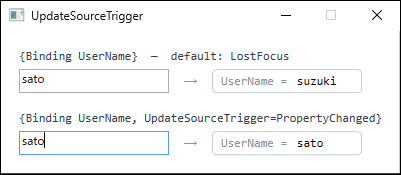
UserName starts as suzuki, and sato is typed after moving focus into the input, through WPF's input processing (InputManager). The bottom box is typed first and the top box last, so focus stays in the top box. The right side displays the same UserName through a OneWay binding. With the default (top) the source is not updated because focus never leaves the box, while PropertyChanged (bottom) updates it immediately.Cause / Background
The cause is that the default UpdateSourceTrigger of TextBox.Text is LostFocus.
The default of UpdateSourceTrigger is Default, which means “the default update timing defined for the target dependency property”.
For most dependency properties (such as CheckBox.IsChecked) that default is PropertyChanged, but TextBox.Text alone defaults to LostFocus.
This is a deliberate design choice.
Updating the source on every keystroke runs change notification, validation, and related processing per character, which harms performance.
It also denies the user the usual opportunity to fix input (backspace) before committing.
For that reason, WPF chose LostFocus as the default, updating the source once the TextBox loses focus.
The default value of a dependency property can be confirmed in code.
Inspect DefaultUpdateSourceTrigger on the metadata obtained via DependencyProperty.GetMetadata.
// Retrieve the default UpdateSourceTrigger of TextBox.Text
var metadata = (FrameworkPropertyMetadata)TextBox.TextProperty.GetMetadata(typeof(TextBox));
UpdateSourceTrigger def = metadata.DefaultUpdateSourceTrigger; // => LostFocus
The result being LostFocus is the basis for the problem above.
No source update occurs unless focus moves away.
Reading the metadata and listing it side by side shows that TextBox.Text is the outlier.
| dependency property | DefaultUpdateSourceTrigger | BindsTwoWayByDefault |
|---|---|---|
| TextBox.Text | LostFocus | True |
| CheckBox.IsChecked | PropertyChanged | True |
| ComboBox.SelectedItem | PropertyChanged | True |
| Slider.Value | PropertyChanged | True |
| FrameworkElement.Tag (on PasswordBox) | PropertyChanged | False |
| TextBlock.Text | PropertyChanged | False |
Measured on .NET 10 / Windows 11 by reading FrameworkPropertyMetadata.DefaultUpdateSourceTrigger from DependencyProperty.GetMetadata. BindsTwoWayByDefault is shown alongside.
TextBox.Text is the only one at LostFocus. The others default to PropertyChanged and update the source right after the input or interaction.
That single row of difference is why “the binding is set up but no value arrives” happens mostly on TextBox.
When the value actually reaches the source can be measured too, separating the keystroke from the focus change.
| UpdateSourceTrigger | after input | after LostFocus | final |
|---|---|---|---|
| Default | (empty) | "X" | "X" |
| PropertyChanged | "X" | "X" | "X" |
| Explicit | (empty) | (empty) | "X" |
Measured on .NET 10 / Windows 11 by entering one character into the TextBox and reading the source right afterwards, then again after moving focus to another control. Only the Explicit row calls UpdateSource() at the end.
The Default row — which for TextBox.Text means LostFocus — is empty right after the keystroke and fills in only once focus leaves.
Explicit stays empty even then, and nothing reaches the source until UpdateSource() is called.
Solution
To control the timing, specify UpdateSourceTrigger explicitly on the binding.
Three values are available, each with a different update trigger.
PropertyChanged— updates the source immediately wheneverTextBox.Textchanges (per keystroke).LostFocus— updates the source when theTextBoxloses focus (the default forTextBox.Text).Explicit— updates the source only when the app explicitly callsUpdateSource().
For the problem case (delivering the value even when a button runs mid-edit), specifying PropertyChanged reflects each keystroke.
For a form that should commit only when a submit button is pressed, Explicit is appropriate.
Implementation
When immediate reflection of input is required, specify UpdateSourceTrigger=PropertyChanged.
This suits UIs where per-keystroke reflection is natural, such as a search box or chat input.
<!-- Reflect into UserName on each keystroke -->
<TextBox Text="{Binding UserName, UpdateSourceTrigger=PropertyChanged}" />
With this setting, UserName updates on each keystroke even while the TextBox keeps focus.
To defer committing input until a user action (a submit button), specify Explicit.
First, give the TextBox an x:Name in XAML and set the binding’s UpdateSourceTrigger to Explicit.
<!-- Switch to explicit updates -->
<TextBox x:Name="userNameBox" Text="{Binding UserName, UpdateSourceTrigger=Explicit}" />
Using that name, obtain the target BindingExpression from code-behind and call UpdateSource() at the chosen moment to update the source.
// Call this on the submit button click, for example
BindingExpression be = userNameBox.GetBindingExpression(TextBox.TextProperty);
be.UpdateSource();
With Explicit, the source is never updated unless UpdateSource() is called.
Because a missed call means the value is never reflected, call it reliably at the start of the submit processing.
Notes
- Text under IME composition: whether unconfirmed text during IME composition reaches the source with
PropertyChangedwas not measured in this article. To handle only committed values, useLostFocusorExplicitand decide the commit point yourself. - Validation timing:
ValidationRulesare attached to theBindingand run around the source update according to theirValidationStep(defaultRawProposedValue), so they track theUpdateSourceTrigger. In contrast,INotifyDataErrorInfovalidates on the ViewModel after the source is updated and reflects results through theErrorsChangednotification, so with asynchronous validation the display timing may not coincide with the update trigger. WithLostFocus, the source update (andValidationRules) runs after leaving the field; withPropertyChanged, it runs per keystroke. A rule withValidatesOnTargetUpdated="True"also runs on target updates, however, so it does not track theUpdateSourceTriggeralone.INotifyDataErrorInforesults likewise surface whenErrorsChangedis raised, which an implementation may do independently of the source update. RaisingErrorsChangedfrom a background thread still got the error onto the screen (see the table below). Isolating the cause when validation results never reach the screen is covered in Why WPF Validation Errors Are Not Displayed, and Choosing Between IDataErrorInfo and INotifyDataErrorInfo. - Throttling with
Delay: excessive updates fromPropertyChangedcan be throttled withBinding.Delay(since .NET Framework 4.5), which updates once after a specified number of milliseconds from the last input, e.g.{Binding UserName, UpdateSourceTrigger=PropertyChanged, Delay=500}. - Interactions that do not move focus: when the
TextBoxneither loses focus nor hasUpdateSource()called, no source update occurs under the defaultLostFocus. This covers aFocusable="False"button activated by click, a default button (IsDefault="True") activated by Enter, and access keys. Measured with a default button,UserNamestill held the old value at the time ofClick, and focus remained in theTextBox(see the table below). Note thatFocusable="False"only prevents the button from taking focus; it does not prevent activation viaIsDefaultor an access key. UsePropertyChangedorExplicitfor UIs that commit through such paths. - Difference from
x:Bind: WPF{Binding}supports all three values includingExplicit. UWP/WinUI{x:Bind}does not supportExplicit, so do not conflate the two when reading articles targeting other platforms.
| case | measured |
|---|---|
| default binding, type "sato", then Enter on an IsDefault button | in Click: UserName = suzuki, TextBox focused True |
| ErrorsChanged raised on the UI thread | Validation.HasError True (raised on thread UI) |
| ErrorsChanged raised on a background thread | Validation.HasError True (raised on thread other than UI) |
Measured on .NET 10 / Windows 11. The characters and Enter were sent through WPF’s input processing (InputManager).
Alternatives / Comparison
Choose the source update timing for TextBox.Text according to the nature of the UI.
| Value | Update trigger | Pros | Cons | Best suited for |
|---|---|---|---|---|
LostFocus (default) |
When focus is lost | Commits and validates once, after input | Nothing reflects unless focus moves | Ordinary input forms; UIs that commit on focus change |
PropertyChanged |
Per keystroke | Input reflects immediately | High update frequency; IME intermediate text flows in | Search boxes, real-time preview, chat input |
Explicit |
On UpdateSource() call |
Full control over commit timing | Nothing reflects if the call is missed | Edit forms that commit in bulk via a submit button |
To keep the immediacy of PropertyChanged while reducing update frequency, combining it with Delay to update once after a fixed idle time is effective.
Summary
Most cases where TextBox input fails to reach the ViewModel stem from TextBox.Text defaulting to LostFocus for UpdateSourceTrigger.
Because the source is not updated unless focus moves or UpdateSource() is called, UIs that commit via a Focusable="False" button, a default button (IsDefault="True"), or an access key run their logic with a stale value.
Choose PropertyChanged for search and preview scenarios that need immediate reflection, Explicit for edit forms that commit in bulk via a submit button, and the default LostFocus for ordinary forms that commit naturally on focus change.
When the update frequency of PropertyChanged becomes a problem, throttle it with Delay; note that Delay does not exclude IME intermediate strings, so use LostFocus when processing must wait for the committed text.
Because the update timing governs when ValidationRules run (while INotifyDataErrorInfo results surface separately via ErrorsChanged), select UpdateSourceTrigger from both the input experience and the validation design.
For the pitfalls of the UpdateSource() call itself when writing an Explicit binding back from the View (the conditions under which GetBindingExpression returns null, updating multiple bindings at once, and the difference from UpdateTarget()), see Calling TextBox UpdateSource from the View in WPF: Implementation and Pitfalls.
- Why a WPF RadioButton Bound to an Enum Shows No Initial Selection — The Role of GroupName
- TextBox (WPF Standard Control Demo App): compares the three
UpdateSourceTriggersettings side by side and measures what applies only to typing