Overview
If a database column holds 50 characters, the TextBox gets MaxLength="50".
If deliveries are accepted only within a period, the DatePicker gets DisplayDateStart and DisplayDateEnd.
Input limits on the screen are a common way to keep values within range.
Yet when saved data is loaded, or when values imported from a file flow in through a binding, values beyond these limits appear on the screen as they are and go on to be saved.
This article tries seven common input limits on three paths: user input, assignment from code, and a bound value.
A table shows which path each limit applies to.
It then shows an implementation that moves validation and rounding into the view model, so that values beyond the limits are stopped reliably.
All values in the figures were measured by running the code on .NET 10 / Windows 11.
Prerequisites / Environment
- Framework: .NET 6 or later / WPF
- Tested on: .NET 10 / Windows 11
- Language: C# 10 or later / XAML (the code assumes nullable reference types and implicit usings are enabled)
- Controls:
TextBox/PasswordBox/DatePicker/Slider/TabControlandTabItem - Architecture: MVVM, with input values bound two-way to a view model
Problem
The example is a screen that edits customer details.
The screen has these input limits.
<TextBox Text="{Binding Name, UpdateSourceTrigger=PropertyChanged}"
         MaxLength="50" />
<DatePicker SelectedDate="{Binding DeliveryDate}"
            DisplayDateStart="{Binding FirstDeliveryDate, Mode=OneWay}"
            DisplayDateEnd="{Binding LastDeliveryDate, Mode=OneWay}" />
<Slider Value="{Binding Volume, Mode=TwoWay}"
        Minimum="0" Maximum="100"
        IsSnapToTickEnabled="True" TickFrequency="10" />
The intent is a name of at most 50 characters, a delivery date within the period, and a volume from 0 to 100 in steps of 10.
DisplayDateStart and DisplayDateEnd bind two-way by default, and when the period is held in read-only properties, the default binding throws InvalidOperationException when the DataContext is set or when the window is shown, whichever comes later (the third figure, under Notes).
The bindings that only pass the period from the view model therefore specify Mode=OneWay.
As long as the user works with the keyboard and the calendar, the screen mostly behaves as intended.
The 51st character is not accepted, dates outside the period cannot be picked in the calendar, and the slider moves in steps of 10.
The trouble starts when a value arrives by a path other than the user’s input.
Typical cases include the following.
- Loading customer data saved by an earlier version that allowed 80 characters
- Setting
DeliveryDateto a date imported from a CSV file - Restoring a volume of
23.4saved in a settings file
Each value appears on the screen as it is, and if the user presses Save, it reaches the save logic still beyond the limit.
The Common Advice
The standard answer to “how do I limit the number of characters” is to set MaxLength.
The Microsoft Learn reference for TextBox.MaxLength lists postal codes and phone numbers, and also keeping the text within the maximum length of the corresponding database column.
Other controls have properties that their references describe as restricting what the user does.
Calendar.DisplayDateStart, which the DatePicker.DisplayDateStart reference points to, keeps the user from scrolling to or selecting dates outside the range, and Slider.IsSnapToTickEnabled moves the thumb to the closest tick mark.
This article takes up the following seven settings, which are easy to write with the intent of keeping values within range.
| What to protect | Setting |
|---|---|
| Maximum number of characters | TextBox.MaxLength |
| Uppercase text | TextBox.CharacterCasing="Upper" |
| Maximum password length | PasswordBox.MaxLength |
| Date range | DatePicker.DisplayDateStart / DisplayDateEnd |
| Values in fixed steps | Slider.IsSnapToTickEnabled with TickFrequency |
| Upper bound | Slider.Maximum |
| A tab that cannot be selected | TabItem.IsEnabled="False" |
As a way to restrict what the user enters, these are correct.
The mistake is to read them as constraints on the property value, and to expect them to protect values that come from code or a binding too.
Why It Does Not Work
Each limit was tried on the three paths.
For user input, keyboard focus was moved to the control, and keys were sent through WPF’s InputManager and characters through TextCompositionManager.
For the calendar, the test read whether the day button outside the range was enabled, and tab selection was tried by calling Select through UI Automation, the interface that assistive technologies use.
Values from code and from bindings were set on controls shown in a window.
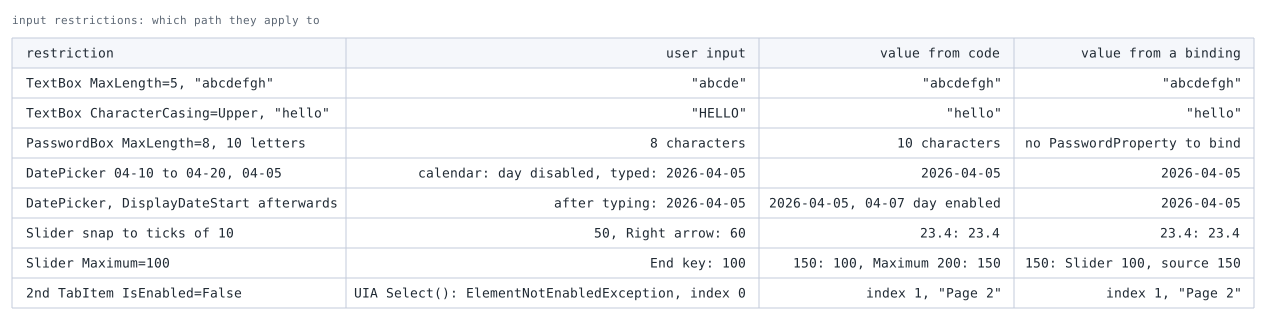
Only the Slider’s Maximum brought values from code and bindings into range on the screen.
Assignment from code got past six of the seven limits.
Of the six limits that could be bound, which excludes the PasswordBox, bound values got past five on the screen and all six in the source.
For MaxLength, CharacterCasing, and PasswordBox.MaxLength, this is by design.
Each is defined as a limit on characters the user enters, not on the property value.
The MaxLength reference defines it as the maximum number of characters that can be entered manually, and states that it does not affect characters added programmatically.
The CharacterCasing reference has the same note, and the PasswordBox.MaxLength reference states that it has no effect when Password is changed from code.
For the Slider’s snapping, the reference does not say whether the path makes a difference.
In the measurement, the arrow key snapped to a tick, while 23.4 set from code or a binding stayed 23.4.
The DatePicker restricts only part of the user input.
The day buttons outside the range are disabled, but a date outside the range typed into the text box became the SelectedDate as it was.
Furthermore, whichever path brought in the out-of-range date, DisplayDateStart dropped to that date.
After 2026-04-05 was set from code, the calendar had the April 7 button, which is outside the range, enabled as well.
The Calendar.DisplayDateStart reference also states that setting SelectedDate before DisplayDateStart sets DisplayDateStart to the same value.
Only the start side was measured, but the Calendar.DisplayDateEnd reference says the same for dates after the end.
On a screen that has loaded an out-of-range value, even the calendar does not keep the range.
A TabItem with IsEnabled="False" rejects selection through UI Automation with ElementNotEnabledException.
Setting SelectedIndex, however, selected the disabled tab, and its content (SelectedContent) became Page 2.
That a click with the real mouse cannot select a disabled tab either is measured on the TabItem demo page.
When the Limits Do Apply
In the table, only the Slider’s Maximum brought values from code and bindings into range on the screen.
It is not part of input handling; it coerces Value itself into the range.
As the table shows, 150 set from code became 100, and it went back to 150 when Maximum was raised to 200.
The control keeps the value that was set and only constrains the effective value to the range.
This coercion is described in Dependency property callbacks and validation.
In the measurement, however, the coerced value was not written back to the bound source.
Even with Mode=TwoWay, the source stayed at 150 while the Slider on the screen showed 100.
The screen and the view model disagree, and the view model’s 150 goes on to the save logic, so this does not protect the value either.
A control’s input limit can be trusted to guarantee a value only when both of the following hold:
- Only the user operating that control writes the value (no code puts a value in, such as loading, importing, or setting a default)
- The control is not one like
DatePicker, whose limit covers only part of the user input
Few input fields in business applications meet these conditions.
A screen that edits saved values fails the first one by its nature.
The reliable approach is therefore to validate the range in the view model and keep the control’s limits as an aid to input.
Implementation
Validating the length in the view model
The length of the name is validated with INotifyDataErrorInfo.
Each time Name is set, the setter checks the length, records an error if it is too long, and raises ErrorsChanged.
Values from code and values from a binding both always pass through this setter.
using System.Collections;
using System.ComponentModel;
using System.Runtime.CompilerServices;

public sealed class CustomerViewModel : INotifyPropertyChanged, INotifyDataErrorInfo
{
    public const int MaxNameLength = 50;

    private string _name = "";
    private readonly List<string> _nameErrors = new();

    public string Name
    {
        get => _name;
        set
        {
            _name = value;
            OnPropertyChanged();
            _nameErrors.Clear();
            if (value.Length > MaxNameLength)
            {
                _nameErrors.Add($"Name must be at most {MaxNameLength} characters.");
            }

            ErrorsChanged?.Invoke(this, new DataErrorsChangedEventArgs(nameof(Name)));
            OnPropertyChanged(nameof(HasErrors));
        }
    }

    public bool HasErrors => _nameErrors.Count > 0;

    public IEnumerable GetErrors(string? propertyName) =>
        propertyName == nameof(Name) ? _nameErrors : Array.Empty<string>();

    public event PropertyChangedEventHandler? PropertyChanged;

    public event EventHandler<DataErrorsChangedEventArgs>? ErrorsChanged;

    private void OnPropertyChanged([CallerMemberName] string? name = null) =>
        PropertyChanged?.Invoke(this, new PropertyChangedEventArgs(name));
}
A value that is too long is kept as an error rather than truncated, so that loaded data is not changed silently.
The user decides what to fix, and saving is allowed only while HasErrors is false.
Changes to HasErrors are also raised through PropertyChanged, so a Save button whose IsEnabled is bound to the inverse of HasErrors follows it (third row of the second figure).
WPF has no built-in converter that inverts a bool, so a converter like the following is needed.
using System.Globalization;
using System.Windows.Data;

public sealed class InvertBooleanConverter : IValueConverter
{
    public object Convert(object value, Type targetType, object parameter, CultureInfo culture) => !(bool)value;

    public object ConvertBack(object value, Type targetType, object parameter, CultureInfo culture) => !(bool)value;
}
The Save button’s IsEnabled is bound to HasErrors through this converter.
local is the XAML prefix for the namespace that holds the converter.
<Window.Resources>
    <local:InvertBooleanConverter x:Key="InvertBooleanConverter" />
</Window.Resources>

<Button Content="Save"
        IsEnabled="{Binding HasErrors, Converter={StaticResource InvertBooleanConverter}}" />
The button is disabled while HasErrors is true, and enabled again once the length is fixed and it becomes false.
MaxLength stays in the XAML.
The keyboard can no longer enter more than 50 characters, so user input never goes past the limit.
The value should match CustomerViewModel.MaxNameLength.
<TextBox Text="{Binding Name, UpdateSourceTrigger=PropertyChanged}"
         MaxLength="50" />
The default of ValidatesOnNotifyDataErrors is true.
A binding to a source that implements INotifyDataErrorInfo reflects its errors in the TextBox’s Validation.HasError without setting it.
Rounding to the range and step in the setter
For some values, such as a volume, it is more natural to round an out-of-range value than to reject it.
In that case, the setter clamps the value to the range and rounds it to the step.
NaN cannot be clamped, so it is ignored and the current value is kept.
using System.ComponentModel;

public sealed class VolumeViewModel : INotifyPropertyChanged
{
    private double _volume;

    public double Volume
    {
        get => _volume;
        set
        {
            if (double.IsNaN(value))
            {
                return;
            }

            double clamped = Math.Clamp(value, 0, 100);
            _volume = Math.Round(clamped / 10, MidpointRounding.AwayFromZero) * 10;
            PropertyChanged?.Invoke(this, new PropertyChangedEventArgs(nameof(Volume)));
        }
    }

    public event PropertyChangedEventHandler? PropertyChanged;
}
PropertyChanged is raised with the rounded value, so the Slider also shows the rounded value.
The XAML can stay as the Slider in “Problem”.
Checking both paths
Both view models were tried with assignment from code and with user input.
For the figure, the maximum length of the name was changed to 5.
To check the view model’s rule alone, the Slider was widened to 0–200, snapping was turned off, and SmallChange was set to 5.
The Slider itself does not round the value, so if the source and the screen show a rounded value, the view model rounded it.
To see the value the Slider sent to the source on each key, the setter was given extra code, for the measurement only, that records the value it received (it is not in the implementation above).

The rounding applied both to values from code and to values sent by the Slider’s key operations.
150 and 23.4 became 100 and 20; the 200 sent by the End key and the 55 sent by the Right arrow key became 100 and 60; in every case the source and the Slider agreed.
The mismatch seen in the first figure when relying on the Slider’s Maximum alone, with the source at 150 and the screen at 100, did not occur.
A name that was too long, set from code, gave HasErrors True, and Validation.HasError on the TextBox was True as well.
The Save button followed the changes of HasErrors, both for values from code and for the user’s edits.
Notes
- As long as typing starts from a value within the limit, no validation error appears.
WithMaxLengthkept, typing stops at the limit and a value that is too long never reaches the view model.
As the first row of the second figure shows,HasErrorsstaysFalse, so the error display cannot tell the user about the limit.
The limit should be stated in the screen’s text. - After a value beyond the limit is loaded, characters cannot be added.
As the second row of the second figure shows, typing at the end of aTextBoxholding text beyond the limit adds nothing, and deleting one character leaves the error in place.
The error message should say that the value cannot be saved until it is cut down to the limit. PasswordBox.Passwordcannot be bound.
PasswordBoxhas noPasswordPropertyto bind to.
MaxLengthdoes not apply to aPasswordset from code; in the first figure all 10 characters remained.
The length should be checked in the code that readsPassword.- The
DatePickerrange should be validated in the view model.
Out-of-range dates come in through the text box, and once one is in, the calendar’s range widens too.
The range should be validated at the source thatSelectedDateis bound to.
It is written the same way as the length check; only the comparison changes to the date range. - A disabled tab can be selected from code.
On a screen where the view model setsSelectedIndex, the view model itself should decide whether the tab can be selected before setting it. - The
Slider’s coercion does not change the source.
The value on the screen and the value that is saved are not necessarily the same.
The range should be rounded or validated in the view model. - A period held in read-only properties needs
Mode=OneWay.
The default binding ofDisplayDateStartandDisplayDateEndis two-way.
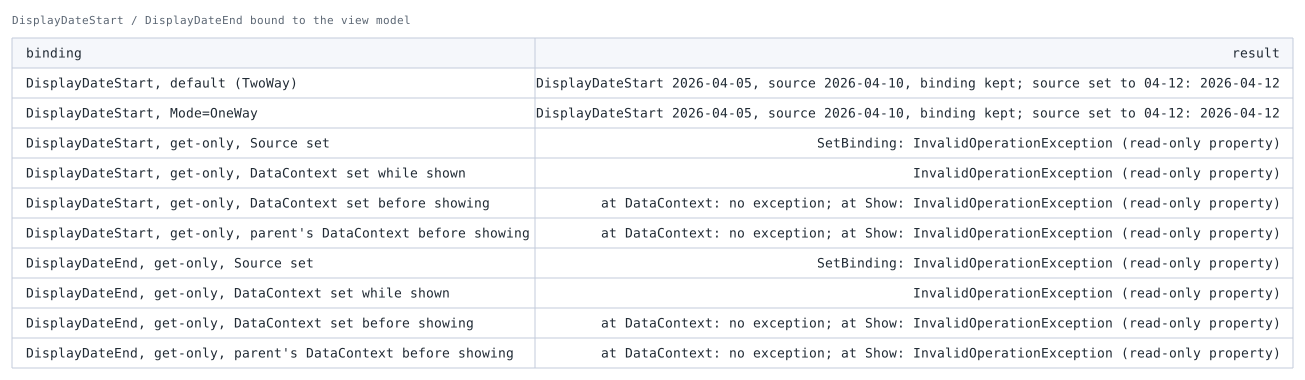
Binding either of them to a read-only property threwInvalidOperationExceptioninSetBindingwhen the source was set directly.
ThroughDataContext, the same exception was thrown when theDataContextof a shownDatePickerwas set, or, when it was set before showing, while the window was being shown.
Setting theDataContexton a parent element before showing, so that theDatePickerinherits it, also threw while the window was being shown.
With a settable property, the source was not changed even when an out-of-range date loweredDisplayDateStart, and the result was the same asOneWay.
The following figure shows the results of binding the period.
The default two-way binding and OneWay were tried with DisplayDateStart.
Read-only properties were tried with both DisplayDateStart and DisplayDateEnd in four ways: setting the source directly, setting the DataContext while shown, setting the DataContext before showing, and setting the DataContext on a parent element before showing.
Summary
TextBox.MaxLength, CharacterCasing, PasswordBox.MaxLength, DisplayDateStart, IsSnapToTickEnabled, and TabItem.IsEnabled all restrict what the user does; none of them constrains the property value itself.
Assignment from code gets past all of them, bound values get past the ones that can be bound, and the DatePicker does not even stop input from its text box.
The Slider’s Maximum coercion, the only one in the table that brought values from code into range on the screen, was not written back to the bound source.
The responsibility for a value’s range is split as follows.
- Guaranteeing the value:
Validation in the view model (INotifyDataErrorInfo) or rounding in the setter.
This applies to values from any path: code, a binding, or user input. - Helping the user enter it:
Control limits such asMaxLengthstay, so that the user cannot type a value out of range.
The limit should match the view model’s constant. - When the control alone is enough:
Only input fields where the user of that control is the only writer, no code puts a value in, and the control is not one likeDatePicker, whose limit covers only part of the user input.
- Why WPF Validation Errors Are Not Displayed, and Choosing Between IDataErrorInfo and INotifyDataErrorInfo
- TextBox (WPF Standard Control Demo App): measures that
MaxLengthandCharacterCasingact only on typing - PasswordBox (WPF Standard Control Demo App): measures that
Passwordcannot be bound and thatMaxLengthlimits only typing - DatePicker (WPF Standard Control Demo App): measures that a date outside the display range is accepted, typed or set from code
- Slider (WPF Standard Control Demo App): measures snapping to ticks and coercion into the range
- TabItem (WPF Standard Control Demo App): measures that a disabled tab can still be selected from code